Homepage: A Fast, YAML-Configured Dashboard for Your Homelab
Homepage puts your self-hosted services, container status and live stats from 100+ integrations on one fast start page. Here's how to install and configure it with Docker Compose.
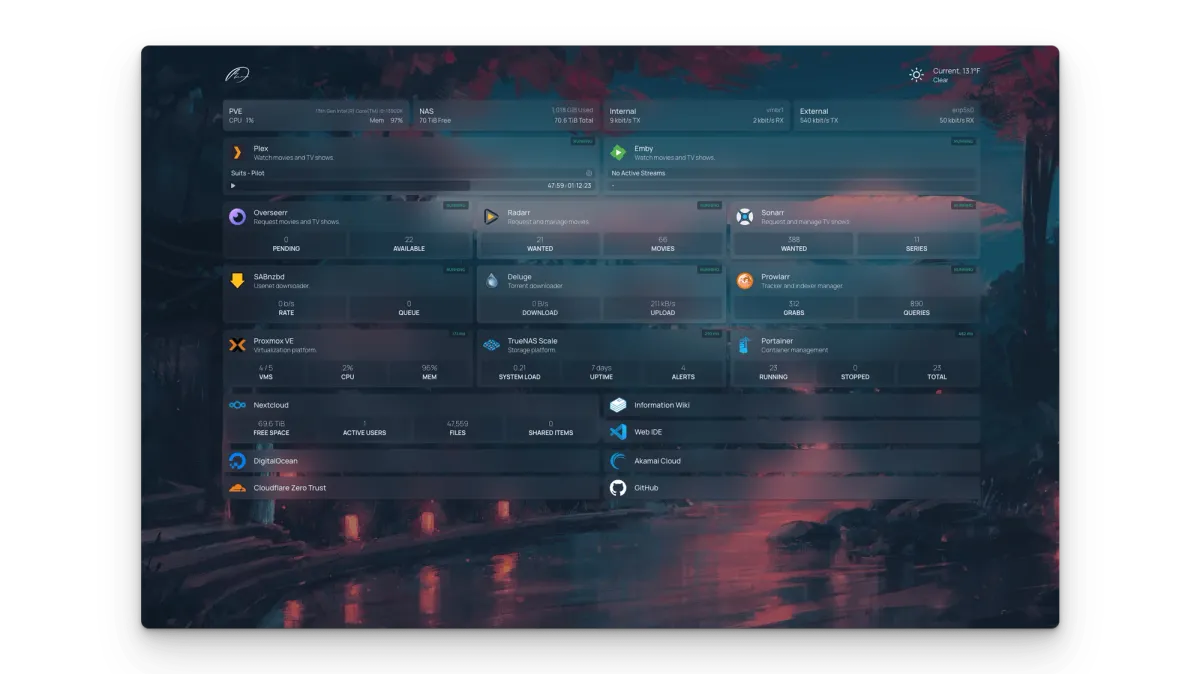
If you're looking for a dashboard for your homelab that loads fast, looks good and doesn't need its own database, Homepage deserves a spot on your shortlist. Every homelab hits that point eventually: the bookmarks bar is overflowing, there's a media server here, Uptime Kuma there, plus the router, the reverse proxy and three containers whose ports nobody can remember. That's exactly the mess Homepage cleans up.
Let's be upfront, though: Homepage isn't for people who want to drag and drop everything into place. You configure it with YAML files. If that doesn't scare you (and if you write Docker Compose files, it probably won't), you get a clean, snappy dashboard whose entire config fits nicely into Git.
What is Homepage?
Homepage is an open-source, self-hosted start page and application dashboard. The project lives on GitHub at gethomepage/homepage, is licensed under GPL-3.0 and is very actively maintained. At the time of writing, the latest release is v2.6.0, published on October 17, 2026.
In short: you decide which services, bookmarks and widgets show up, and Homepage fetches the live data in the background. All API requests to your services are proxied through the Homepage server, so your API keys never end up in the browser.
Key features
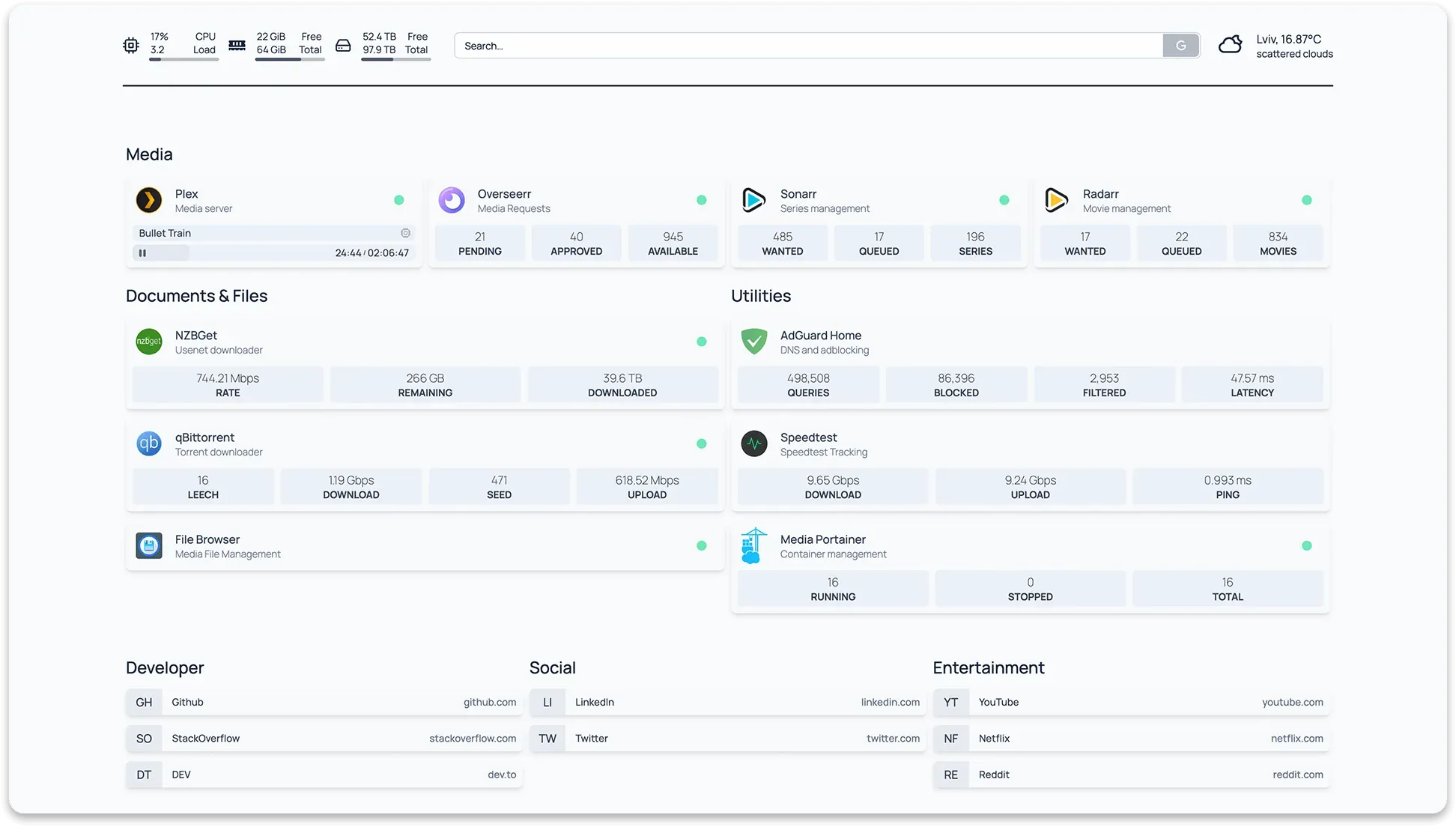
- 100+ service integrations: Sonarr, Radarr, Jellyfin, AdGuard Home, Authentik, Uptime Kuma, Proxmox and many more. Each integration shows relevant live stats right on its card.
- Docker integration: container status plus CPU, memory and network stats, and automatic service discovery via Docker labels.
- Info widgets: system resources, date and time, weather, web search and more in the header.
- Bookmarks: simple link groups for everything that doesn't need its own card.
- Quick Launch: just start typing to search your services or kick off a web search.
- Customizable: themes, color palettes, background images, tabs, layouts, custom CSS and JavaScript.
- Translated into many languages.
- Images for AMD64 and ARM64, so it runs on a Raspberry Pi too.
- Optional login since v2.0, with a password or via OIDC.
Why Homepage?
Three things make Homepage stand out:
- Configuration as code. Everything lives in a handful of YAML files. Put them in Git, back them up and take them to a new server in seconds.
- Speed. Dashboard data is cached and assets are optimized, so the page feels quick.
- Labels instead of busywork. If you already run your containers with Docker Compose, you can attach dashboard entries as labels right on the service. New container, new card.
Installing with Docker Compose
All you need is a host with Docker and Docker Compose. Create a directory first:
mkdir -p ~/homepage/config
cd ~/homepage
Then create a compose.yaml:
services:
  homepage:
    image: ghcr.io/gethomepage/homepage:latest
    container_name: homepage
    restart: unless-stopped
    ports:
      - 3000:3000
    environment:
      HOMEPAGE_ALLOWED_HOSTS: home.example.com,192.168.1.10:3000
      PUID: 1000
      PGID: 1000
    volumes:
      - ./config:/app/config
And start it:
docker compose up -d
Homepage is now available at http://<your-server-ip>:3000. On first start it copies any missing config files into your config folder, including settings.yaml, services.yaml, widgets.yaml, bookmarks.yaml and docker.yaml. So you don't start from a blank page, you start from a working example.
A note on PUID and PGID: they make the container run as a non-root user, which is a good idea. Just make sure the config folder is owned by that user. Without these variables, Homepage runs as root by default.
Tip: Instead oflatestyou can pin a version likev2.6.0. That way you decide when updates happen.
HOMEPAGE_ALLOWED_HOSTS: the most common gotcha
Since v1.0, HOMEPAGE_ALLOWED_HOSTS is required as soon as you access Homepage via anything other than localhost. It protects Homepage's API proxy against certain kinds of attacks.
A few things worth knowing:
- The value is a comma-separated list without spaces.
- If you access Homepage by IP and port, include the port, e.g.
192.168.1.10:3000. localhost:3000and127.0.0.1:3000are always allowed.- Seeing a host validation error? Check the logs (
docker logs homepage). The host appears there exactly as it needs to go into the list. - You can disable the check with
*, but the docs explicitly recommend against it.
Configuration: the important files
After editing the YAML files, a page reload is usually enough. The settings docs recommend the refresh icon in the bottom right corner, which also clears the cached dashboard data.
settings.yaml: title, look and layout
title: My Homelab
theme: dark
color: slate
headerStyle: boxed
statusStyle: dot
target: _blank

layout:
  Infrastructure:
    style: row
    columns: 3
  Media:
    style: row
    columns: 4
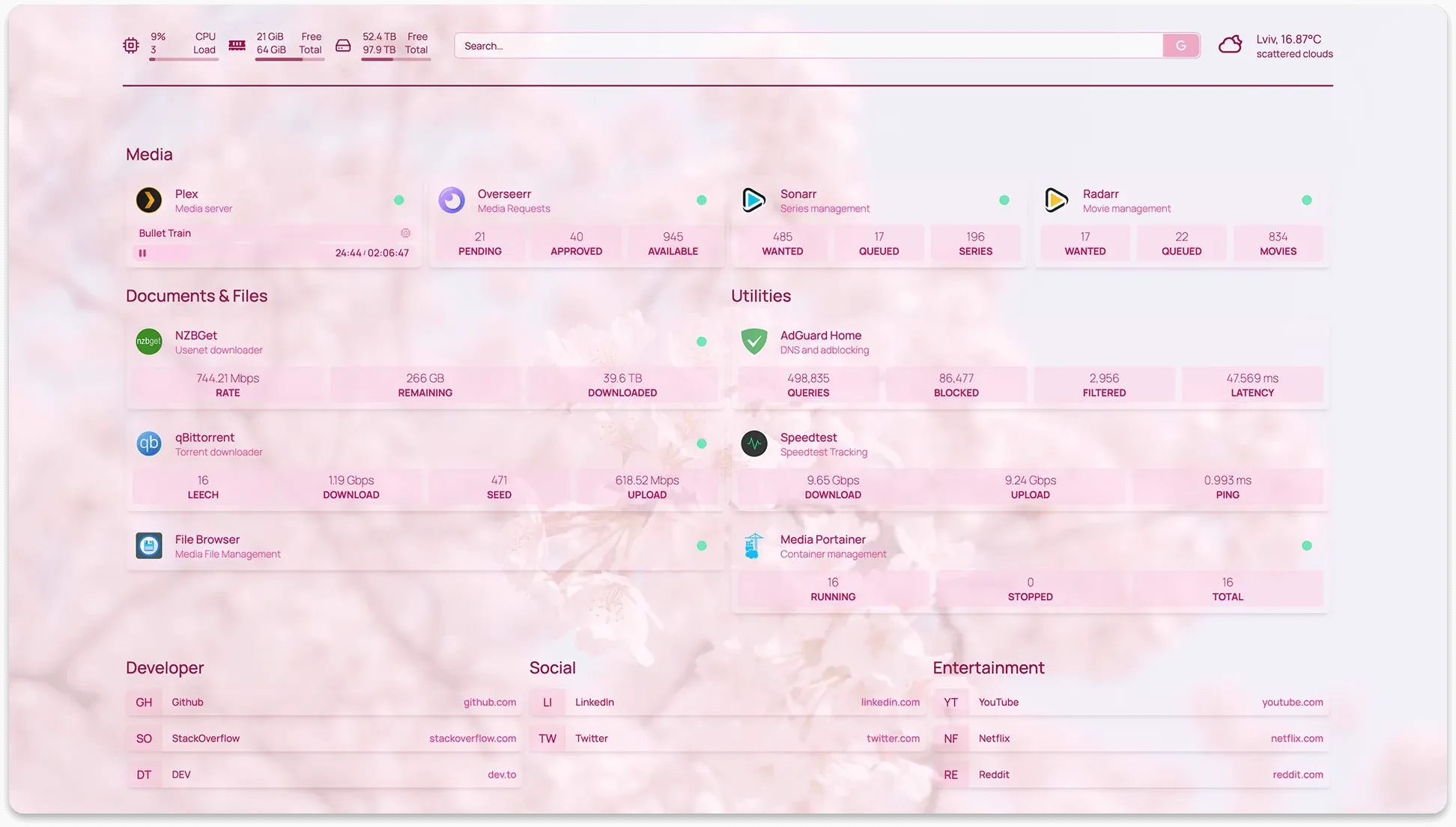
layout controls whether a group is rendered as a column or a row and how many columns it gets. statusStyle: dot swaps the status label for a subtle dot. Set tab: on a few groups and you even get a tabbed view.
services.yaml: your services
This is where you define groups and the services inside them:
- Infrastructure:
    - Uptime Kuma:
        icon: uptime-kuma.png
        href: https://status.example.com
        description: Monitoring
        siteMonitor: http://uptime-kuma:3001
        widget:
          type: uptimekuma
          url: http://uptime-kuma:3001
          slug: homelab

- Media:
    - Sonarr:
        icon: sonarr.png
        href: https://sonarr.example.com
        description: TV shows
        server: my-docker
        container: sonarr
        widget:
          type: sonarr
          url: http://sonarr:8989
          key: "{{HOMEPAGE_VAR_SONARR_KEY}}"
          fields: ["wanted", "queued"]
A few details:
iconpulls icons from Dashboard Icons automatically. With themdi-,si-orsh-prefixes you can use Material Design Icons, Simple Icons or selfh.st/icons instead. Note that these icons are loaded by the browser from external CDNs.siteMonitorchecks via HTTP whether a service is reachable and shows the response time. If the service sits behind an auth layer like Authelia, point this at an internal URL.serverandcontainerlink the card to a Docker container (seedocker.yamlbelow).fieldsshows only the stats you actually care about.
Keep secrets out of your YAML
You don't have to paste API keys into the config. Homepage substitutes placeholders with environment variables that start with HOMEPAGE_VAR_:
    environment:
      HOMEPAGE_VAR_SONARR_KEY: your-api-key
Alternatively, a variable prefixed with HOMEPAGE_FILE_ points to a file whose contents get inserted, which plays nicely with Docker secrets.
widgets.yaml: the header
Info widgets live at the top of the page, in the order they appear in the file:
- resources:
    cpu: true
    memory: true
    disk: /
    uptime: true

- datetime:
    text_size: xl
    format:
      dateStyle: long
      timeStyle: short
      hourCycle: h23

- openmeteo:
    label: Home
    latitude: 52.52
    longitude: 13.40
    timezone: Europe/Berlin
    units: metric
    cache: 5

- search:
    provider: duckduckgo
    target: _blank
One thing to keep in mind with the resources widget: CPU and memory reflect the container, not the whole host, and every disk you want to show has to be mounted into the container. If you want host-level stats, the docs point to the Glances widget instead. Open-Meteo is handy because it needs no registration and no API key.
bookmarks.yaml: quick links
Bookmarks work like services, minus the extras:
- Docs:
    - Homepage Docs:
        - abbr: HP
          href: https://gethomepage.dev
- Code:
    - GitHub:
        - icon: si-github
          href: https://github.com
abbr is meant to be a two-letter abbreviation. If you also set an icon, the icon wins.
Docker integration and automatic discovery
To show container status, Homepage needs access to the Docker API. You set that up in docker.yaml.
The safer way: a Docker socket proxy
The Docker socket is essentially root access to your host. That's why the Homepage docs suggest a socket proxy that only lets read requests through:
services:
  dockerproxy:
    image: ghcr.io/tecnativa/docker-socket-proxy:latest
    container_name: dockerproxy
    restart: unless-stopped
    environment:
      - CONTAINERS=1
      - POST=0
    volumes:
      - /var/run/docker.sock:/var/run/docker.sock:ro

  homepage:
    image: ghcr.io/gethomepage/homepage:latest
    container_name: homepage
    restart: unless-stopped
    ports:
      - 3000:3000
    environment:
      HOMEPAGE_ALLOWED_HOSTS: home.example.com
    volumes:
      - ./config:/app/config
Since both containers share the same Compose network, the proxy doesn't need to publish a port. Your docker.yaml then looks like this:
my-docker:
  host: dockerproxy
  port: 2375
You can also mount the socket directly (/var/run/docker.sock:/var/run/docker.sock:ro, and socket: /var/run/docker.sock in docker.yaml). According to the docs, though, Homepage then has to run as root or as a user in the docker group, so the proxy is the cleaner choice.
Adding services with labels
This is the fun part. Instead of listing every service in services.yaml, you attach labels to the container:
services:
  jellyfin:
    image: jellyfin/jellyfin:latest
    labels:
      - homepage.group=Media
      - homepage.name=Jellyfin
      - homepage.icon=jellyfin.png
      - homepage.href=https://jellyfin.example.com
      - homepage.description=Movies and shows
Homepage discovers the container and creates the card on its own. You don't need to set server or container here. Widgets work the same way, e.g. homepage.widget.type=… and homepage.widget.url=…. Running more than one Homepage instance? Use instanceName in settings.yaml to scope labels to a specific instance.
Running behind a reverse proxy
Day to day, you'll want Homepage on its own domain with TLS rather than on port 3000, behind Traefik, Caddy, Nginx Proxy Manager or similar. Keep these points in mind:
- Add the domain to
HOMEPAGE_ALLOWED_HOSTS, e.g.home.example.com. - If the proxy shares a Docker network with Homepage, you can drop the
portsmapping so Homepage is only reachable through the proxy. - Homepage knows a lot about your infrastructure and shows live data from your services. The docs are clear about this: if it's reachable from an untrusted network, it belongs behind a reverse proxy with authentication and TLS, and/or a VPN.
Since v2.0, Homepage also ships with a simple login gate. Enable it with HOMEPAGE_AUTH_ENABLED=true, plus HOMEPAGE_AUTH_SECRET (at least 32 characters, e.g. from openssl rand -base64 32), HOMEPAGE_EXTERNAL_URL, and either HOMEPAGE_AUTH_PASSWORD or the OIDC variables (HOMEPAGE_OIDC_ISSUER, HOMEPAGE_OIDC_CLIENT_ID, HOMEPAGE_OIDC_CLIENT_SECRET). Important: Homepage doesn't rate-limit password attempts itself. If it's publicly reachable, add rate limiting at your reverse proxy or feed failed logins into Fail2ban or CrowdSec. The docs describe the log line to match.
More tips
- Back up your config: the
configfolder is all you need. Put it in Git or your backups. - Custom icons: mount a folder to
/app/public/iconsand reference icons as/icons/myicon.png. Restart the container after adding new ones. - Hide errors:
hideErrors: trueinsettings.yamlremoves API error messages from the cards. Leave them on while you're still troubleshooting, though. - Keep it out of search engines: if your dashboard is publicly reachable,
disableIndexing: trueasks crawlers to stay away. - For tinkerers: Homepage has an optional MCP endpoint that lets AI assistants read your configuration and, if you explicitly allow it, edit it. It's off by default and requires a login session or a token.
How it compares
There are a few popular alternatives. A quick overview:
- Homarr is all about drag-and-drop configuration with no YAML, comes with authentication built in and, according to its own description, offers 80+ integrations. Great if you'd rather click than type.
- Dashy is configured via a YAML file but also has an editor in the UI. It brings lots of themes, status checks, widgets and multi-page support.
- Heimdall from linuxserver.io is the classic: a simple tile-based start page that you manage in the browser. Its "Enhanced apps" show live stats for some services.
Homepage shines when you want lots of live data from your services and prefer managing your configuration as files.
Final thoughts
Homepage is one of the most polished homelab dashboards out there: fast, good-looking and backed by a huge list of integrations. The YAML setup takes a little effort at first, but it pays off once you're adding services through Docker labels and keeping everything under version control.
If you give it a try, remember two things: set HOMEPAGE_ALLOWED_HOSTS correctly, and don't hand the container an unprotected Docker socket. Use a socket proxy instead. Do that, and in about half an hour you'll have a dashboard you'll actually enjoy opening every day.
Sources
- Official documentation: gethomepage.dev
- Installation: Installation and Docker installation
- Configuration: Settings, Services, Bookmarks, Docker, Info widgets
- GitHub repository: github.com/gethomepage/homepage and releases
- Alternatives: Homarr, Dashy, Heimdall
- Screenshots: gethomepage/homepage repository (GPL-3.0)