BookOrbit 3.6: Self-Host Your Ebook, Comic and Audiobook Library with Docker Compose
BookOrbit is a fast-growing, AGPL-licensed library server for ebooks, PDFs, comics and audiobooks with Kobo and KOReader sync. We tested version 3.6 on a fresh VM: pinned Docker Compose setup, first library, real resource numbers and the catches.
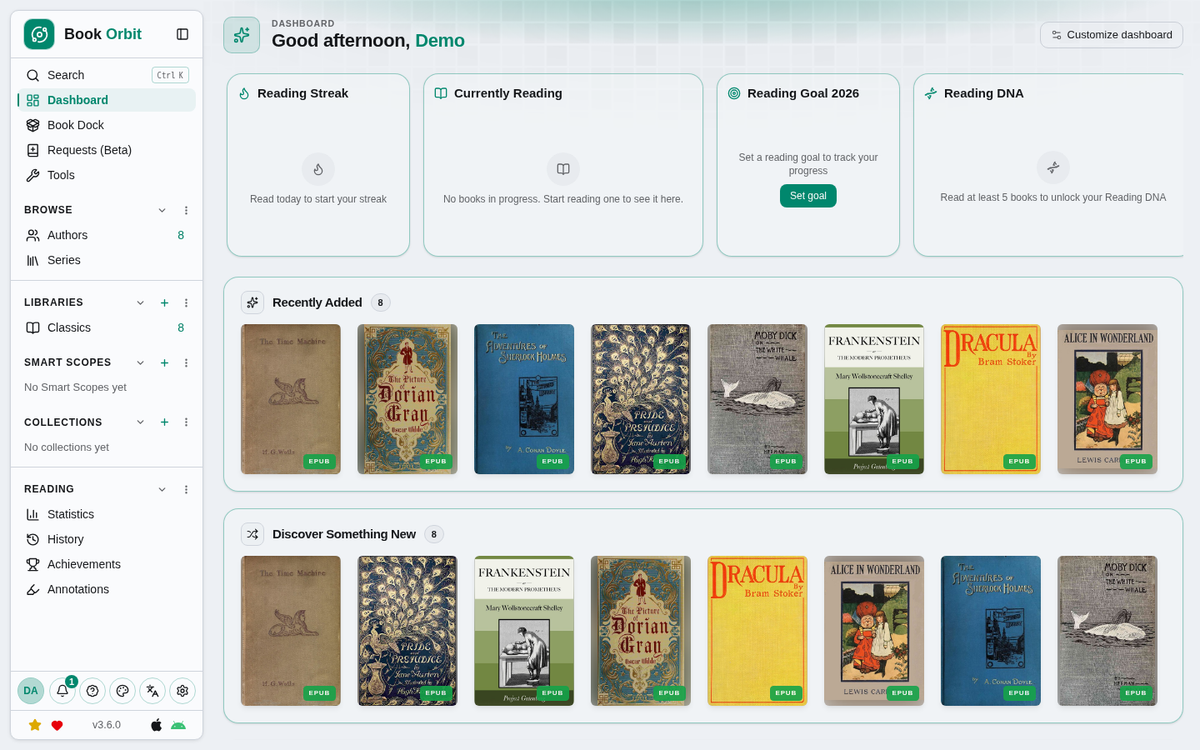
Most of us have a folder somewhere called Books or Calibre Library that quietly grows for years. EPUBs from a Humble Bundle, a few PDFs, the odd audiobook, maybe a stack of comics. Getting all of that onto a phone, an e-reader and a laptop without losing your place every time is where things usually fall apart.
BookOrbit is one of the newer projects trying to fix exactly that, and it has been climbing fast. The repository was created in May 2026, sits at roughly 6,000 GitHub stars six months later, and version 3.6.0 landed on 28 October with first-class comic series support, chapter editing for audiobooks and a built-in way to create read-along books. I set it up on a fresh test VM with Docker Compose, pointed it at a handful of public-domain classics and clicked through the first-run flow. Here is what it does, how to install it, and where the rough edges are.
What BookOrbit actually is
BookOrbit is a self-hosted library and reading server for ebooks, PDFs, comics and audiobooks. You give it one or more folders, it scans them, pulls out covers and metadata, and serves everything through a web app with its own built-in readers. The backend is a Node.js app with PostgreSQL (plus the pgvector extension) as its database, and the whole thing ships as a single container image on GitHub's container registry.
The feature list is long, so here are the parts that matter most for a homelab:
- Built-in readers for EPUB, KEPUB, MOBI, AZW3, AZW and FB2, plus PDF, CBZ/CBR/CB7 comics and audiobooks in M4B, MP3, M4A, OPUS, OGG and FLAC. Nothing extra to install.
- Sync across devices. The project documents Kobo sync, KOReader progress sync and a dedicated KOReader plugin, and there is an official iPhone and Apple Watch app (Android is in closed testing). Progress and highlights are meant to follow you between them.
- Metadata from a dozen providers, including Google Books, Open Library, Hardcover, Audible and ComicVine. Since 3.6 you can also plug in external providers.
- Multi-user with OIDC. Per-user permissions, isolated reading data and single sign-on via OIDC, with Authentik, Keycloak and Authelia named in the docs.
- Delivery options like OPDS for compatible reading apps, Send-to-Kindle by email, browser uploads, and a "Book Dock" drop folder for automatic imports.
- Reading stats: streaks, yearly goals, heatmaps and achievements. Whether you want gamification for your reading is up to you, but it's there.
I didn't have a Kobo or KOReader device on the test bench, so the sync features above are described from the official documentation, not from my own test. Everything in the walkthrough below I did run.
What's new in 3.6
The 3.6.0 release notes highlight a few things. Comic and manga libraries can now use the one-folder-per-series layout people know from Kavita and Komga. You can build "Read Aloud" editions by pairing an EPUB with its audiobook so text and narration stay in sync. Audiobook chapters can be edited directly, including pulling chapter data from Audible. There is also a full history of finished reads, and the external metadata providers mentioned above.
What you need
The official docs list 1 CPU core and 512 MB of free RAM as the minimum, with 2 cores and 1 GB or more recommended. I tested on a fresh Ubuntu 24.04 VM with 2 vCPUs and 1.8 GB of RAM, which turned out to be plenty for a small library. You'll also want:
- Docker Engine with the Compose plugin
- A folder of books on local storage (more on that in the limitations section)
- A domain like
books.example.comand a reverse proxy if you want HTTPS, which you do if you plan to use it outside your LAN
Installing BookOrbit with Docker Compose
The official quick start downloads docker-compose.yml and .env.example from the main branch and uses the latest image tag. For a guide that should still work next month, I pinned everything to the 3.6.0 release instead and trimmed the two optional services (Kokoro text-to-speech and the read-aloud worker) that sit behind Compose profiles. The app and database definitions below are taken from the official v3.6.0 file, with only the image tag written out.
1. Create the folder structure
mkdir -p ~/bookorbit && cd ~/bookorbit
mkdir -p books data/app data/postgres
sudo chown 1000:1000 books
The container runs as UID/GID 1000 by default. BookOrbit fixes ownership of its own data folder on startup, but it deliberately leaves your book folder alone because other apps may share it. If the folder isn't readable by that user, scans find nothing, and uploads fail if it isn't writable. If your existing library belongs to a different user, set PUID and PGID in the .env file instead of changing ownership.
2. Create docker-compose.yml
name: bookorbit
services:
  app:
    container_name: bookorbit-app
    image: ghcr.io/bookorbit/bookorbit:3.6.0
    restart: unless-stopped
    init: true
    env_file:
      - .env
    ports:
      - "${APP_PORT:-3000}:${PORT:-3000}"
    environment:
      NODE_ENV: production
      PORT: ${PORT:-3000}
      DATABASE_URL: ${DATABASE_URL:-}
      POSTGRES_HOST: ${POSTGRES_HOST:-postgres}
      POSTGRES_PORT: ${POSTGRES_PORT:-5432}
      POSTGRES_USER: ${POSTGRES_USER?required}
      POSTGRES_PASSWORD: ${POSTGRES_PASSWORD?required}
      POSTGRES_DB: ${POSTGRES_DB?required}
      JWT_SECRET: ${JWT_SECRET?required}
      PODCAST_ENCRYPTION_KEY: ${PODCAST_ENCRYPTION_KEY:-}
      SETUP_BOOTSTRAP_TOKEN: ${SETUP_BOOTSTRAP_TOKEN?required}
      APP_URL: ${APP_URL?required}
      CLIENT_URL: ${CLIENT_URL:-${APP_URL?required}}
      TZ: ${TZ:-UTC}
      PUID: ${PUID:-1000}
      PGID: ${PGID:-1000}
      NODE_MAX_OLD_SPACE_SIZE: ${NODE_MAX_OLD_SPACE_SIZE:-auto}
      BOOK_DOCK_PATH: ${BOOK_DOCK_PATH:-}
      LIBRARY_BROWSE_ROOT: ${LIBRARY_BROWSE_ROOT:-}
      DISABLE_LOCAL_AUTH: ${DISABLE_LOCAL_AUTH:-false}
    depends_on:
      postgres:
        condition: service_healthy
    volumes:
      - ${BOOKS_HOST_PATH:-./books}:/books
      - ./data/app:/data
    read_only: true
    tmpfs:
      - /tmp
    cap_drop:
      - ALL
    cap_add:
      - CHOWN
      - DAC_OVERRIDE
      - FOWNER
      - SETGID
      - SETUID
    security_opt:
      - no-new-privileges:true
    stop_grace_period: 30s

  postgres:
    container_name: bookorbit-db
    image: pgvector/pgvector:pg18
    restart: unless-stopped
    environment:
      POSTGRES_USER: ${POSTGRES_USER?required}
      POSTGRES_PASSWORD: ${POSTGRES_PASSWORD?required}
      POSTGRES_DB: ${POSTGRES_DB?required}
      PGDATA: /var/lib/postgresql/data/pgdata
    volumes:
      - ./data/postgres:/var/lib/postgresql/data
    healthcheck:
      test:
        ["CMD-SHELL", 'pg_isready -U "$${POSTGRES_USER}" -d "$${POSTGRES_DB}"']
      interval: 10s
      timeout: 5s
      retries: 10
      start_period: 20s
It's worth pausing on the security settings here, because they're better than what most self-hosted Compose files ship with: a read-only root filesystem, all capabilities dropped and only five added back (the ones needed to fix file ownership and switch to the unprivileged user), and no-new-privileges. No Docker socket, no host networking. The database image uses a major-version tag (pg18), which is what upstream ships; the app image is pinned to an exact release.
3. Create the .env file with fresh secrets
The Compose file refuses to start until the required values exist. This writes a minimal .env and generates an independent random value for each secret in one go:
cat > .env <<EOF
APP_PORT=127.0.0.1:3000
APP_URL=https://books.example.com
BOOKS_HOST_PATH=./books
LIBRARY_BROWSE_ROOT=/books
TZ=UTC
PUID=1000
PGID=1000
POSTGRES_USER=bookorbit
POSTGRES_DB=bookorbit
POSTGRES_PASSWORD=$(openssl rand -hex 24)
JWT_SECRET=$(openssl rand -hex 32)
PODCAST_ENCRYPTION_KEY=$(openssl rand -hex 32)
SETUP_BOOTSTRAP_TOKEN=$(openssl rand -hex 16)
EOF
chmod 600 .env
A few notes on those values:
APP_PORT=127.0.0.1:3000publishes the app on localhost only, which is what you want behind a reverse proxy on the same host. The official.env.examplesuggests this form itself. If you just want to try it on your LAN without a proxy, use3000and setAPP_URLtohttp://your-server-ip:3000.APP_URLis the public address. The template notes it is used for emails and Kobo endpoints, so set it to the URL you will actually use.LIBRARY_BROWSE_ROOT=/bookslimits the folder picker in the UI to your book mount instead of showing the container's whole filesystem. Optional, but tidier.PODCAST_ENCRYPTION_KEYshould be its own random value on a fresh install. If you're upgrading an older install, the template says to copy your existingJWT_SECRETinto it first.
The full template has more options (SMTP and migration encryption keys, OIDC settings, _FILE variants for Docker secrets). The installation docs have the complete reference.
4. Start the stack
docker compose up -d --wait
docker compose ps
On the test VM, pulling both images and getting both containers to "healthy" took well under a minute. The app image is about 1.3 GB on disk and the pgvector image another 630 MB, so the first pull is the slow part. Once the containers were created, the app reported healthy within about 15 seconds.
5. Create the admin account
Open the app and you'll land on /setup. The form asks for a username, full name, email, password (at least 8 characters with upper case, lower case and a digit) and the setup token. Grab the token with:
grep SETUP_BOOTSTRAP_TOKEN .envAfter submitting, you're logged in and dropped on an empty dashboard with a seven-step guided tour of the sidebar. Close it or click through, then hit Create your first library.
6. Create a library
The "New library" sheet looks intimidating at first because it has eight sections on the left, but only two things are actually required: a name with an icon, and at least one folder. Use the path as the container sees it, so /books (or a subfolder such as /books/comics), not the path on your host. BookOrbit checks each folder as soon as you add it and shows how many matching files it found.
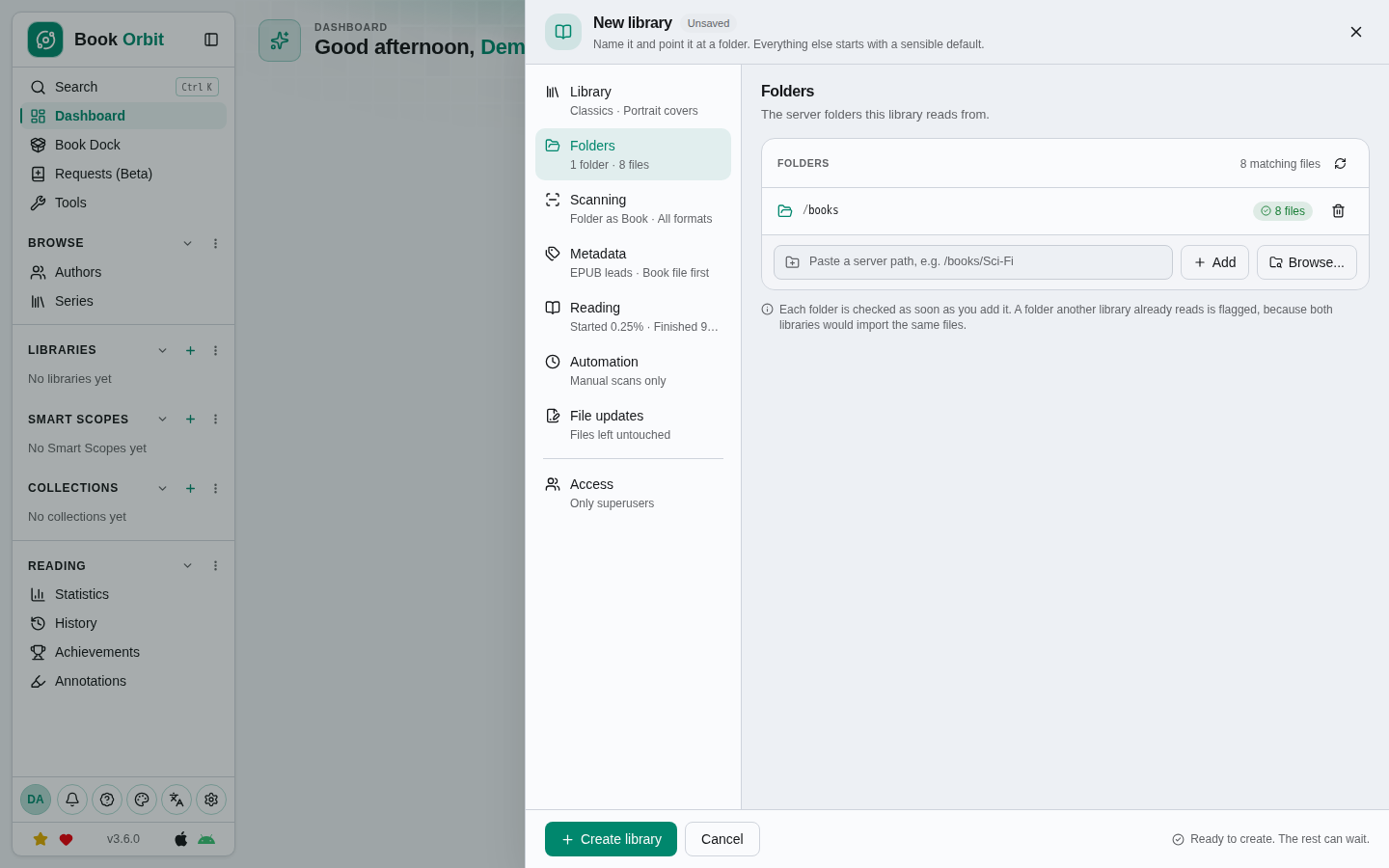
One setting deserves attention before you click Create library: under Scanning, "How files become books" can't be changed later. The default, Folder as Book, keeps all files in one book folder together (alternate formats, covers, multi-file audiobooks), while individual files sitting at the root of the folder still become separate books. File as Book treats every file as its own title, and Series folders is the new 3.6 option for comics kept in one folder per series.
The other sections all start with defaults. Out of the box, scans are manual only, folder watching is off, and BookOrbit does not write anything back into your files. That last one is a good default; if you turn on metadata writing later, keep backups first.
I dropped eight public-domain EPUBs from Project Gutenberg into books/ without any subfolders. The first scan finished within a few seconds, and every book showed up with its cover and a set of subject tags.
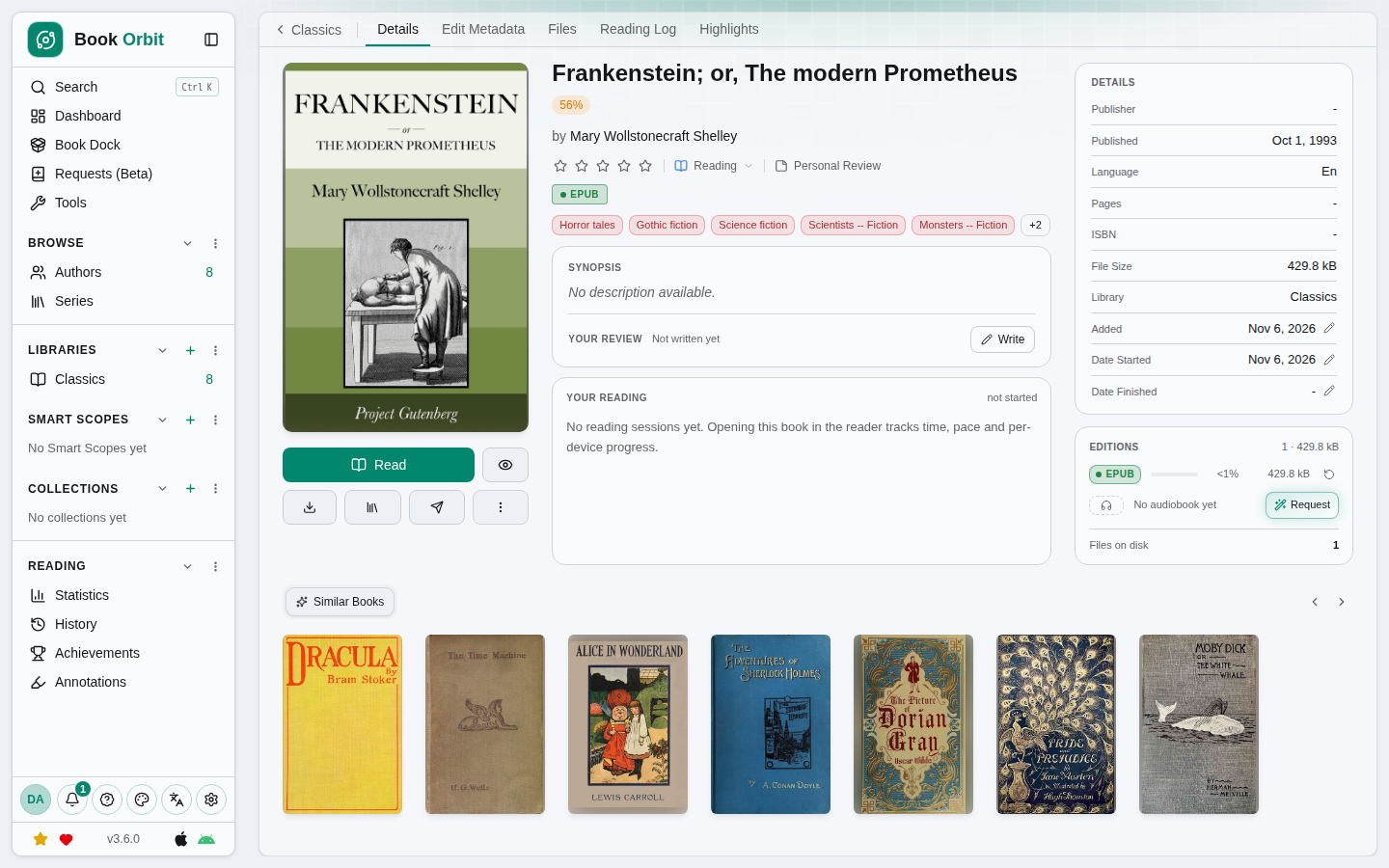
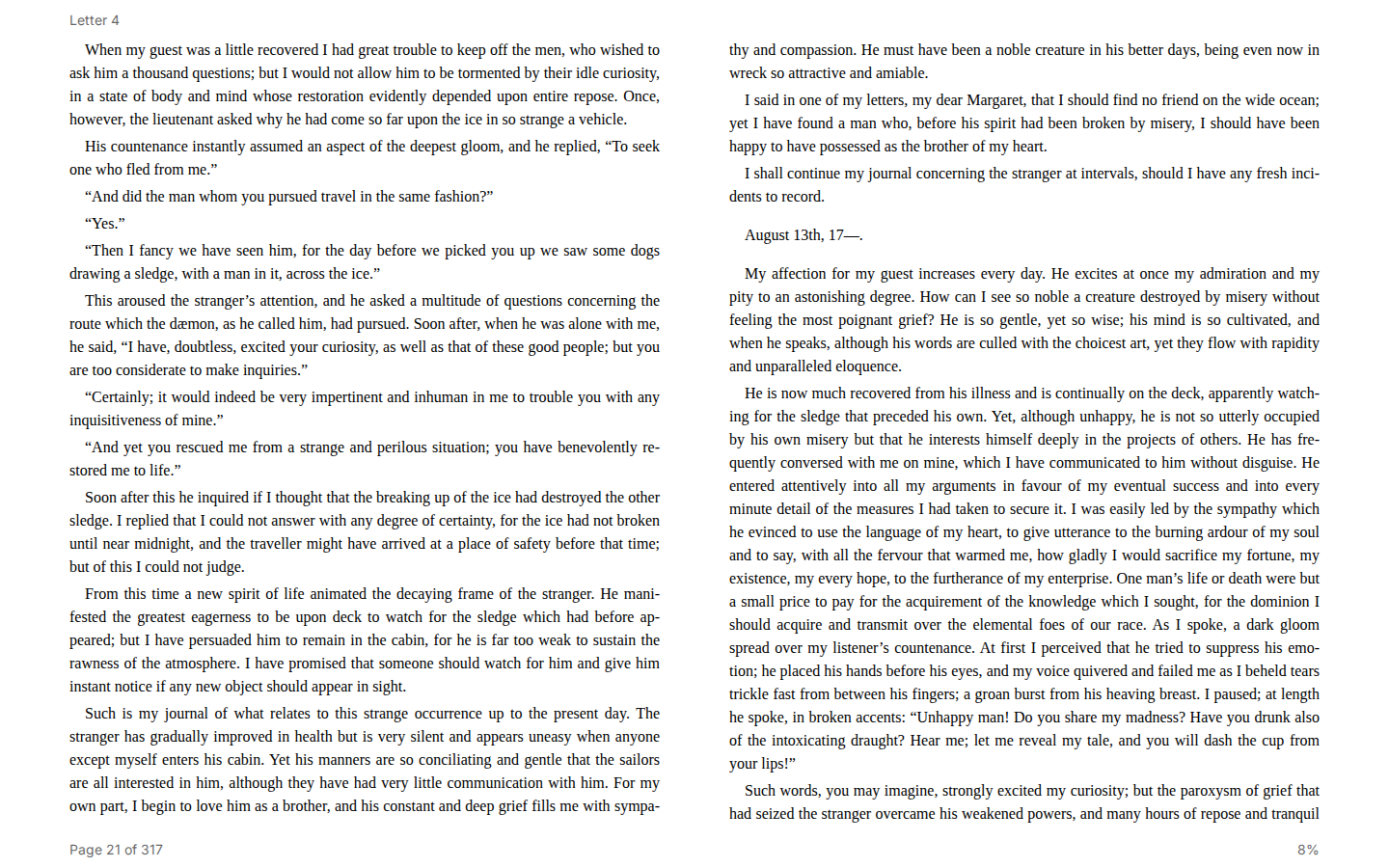
Clicking a cover in the library grid opens the book straight in the reader, which caught me off guard the first time. The details page, with edit metadata, files, reading log and highlights, is a separate view. The EPUB reader itself is clean, shows a two-page spread on a wide screen and keeps a page counter and progress percentage at the bottom.
7. Put a reverse proxy in front
With the port bound to localhost, you need a proxy for remote access. The docs show this Caddy example, which also takes care of the TLS certificate:
books.example.com {
    reverse_proxy localhost:3000
}
Nginx and Traefik work the same way: point them at localhost:3000 and make sure APP_URL matches the public HTTPS address.
Tips from the test run
Mind the anonymous volume. The PostgreSQL 18 image declares its own volume at /var/lib/postgresql. Your actual database lives in ./data/postgres thanks to the bind mount and PGDATA, but Docker still creates an extra unnamed volume next to it. That's harmless, just don't be surprised when docker volume ls shows a random hash.
Memory is modest. With eight books and one user, docker stats showed the app between roughly 210 and 310 MiB and PostgreSQL between 55 and 105 MiB. A small VPS or mini PC is fine for a personal library. The docs only suggest raising NODE_MAX_OLD_SPACE_SIZE for very large libraries; the official template sets it to 2048, and if you leave it out, as above, the Compose default is auto.
It phones home for updates. On startup the app logged an update check against its GitHub releases. Metadata lookups also talk to external providers when you use them. Neither is unusual, but if your server is supposed to be offline, plan for it.
Coming from another app? There's a migration wizard under Settings > Maintenance for Booklore, Grimmory, Audiobookshelf and Calibre-Web Automated. Read the fine print: it doesn't import the books themselves. Your files must already be scanned into a BookOrbit library, and the wizard then matches them and overlays metadata, covers and reading progress. A dry run is a required step before the real migration can start, and what gets imported differs by source (Audiobookshelf covers and Calibre-Web Automated annotations, for example, are not migrated). I didn't test this part.
Updating means bumping the image tag in docker-compose.yml, then docker compose pull and docker compose up -d. Database migrations run automatically at startup. Back up data/ before you do it.
Limitations and security notes
No network storage. The README is blunt about this: book folders, import folders, app data and the database must all be on a local filesystem. SMB, NFS, FUSE and cloud mounts are explicitly unsupported, because the scanner moves and renames files while coordinating with the database. For people who keep their media on a NAS and run apps on a separate box, that's a real constraint. Running BookOrbit on the NAS itself is the obvious workaround.
The license has extra terms. BookOrbit is licensed under the GNU AGPL v3 only, plus additional terms (effective 10 September 2026) under section 7 of the AGPL. In short: every interface has to keep a visible "Powered by BookOrbit" notice with a link to the original project, modified versions must say so clearly and can't use the BookOrbit name or logo as their own branding, and if you run a modified version for others you must offer its source. For personal use of the unmodified app, nothing changes. If you plan to fork it or host it for other people, read ADDITIONAL_TERMS.md first.
Protect the setup page. Until you create the admin account, anyone who can reach the app sees the setup form. The bootstrap token protects it (the form marks it as required in production), so keep that token secret and finish setup right after the first start. Better still, keep APP_PORT bound to localhost as shown. If you publish port 3000 on all interfaces, keep in mind that Docker-published ports usually bypass host firewall rules like UFW.
Young project, fast pace. BookOrbit has shipped a new minor version roughly every week through October. That's great for features and a little less great if you like to set things up once and forget them. Pin the version, read the release notes before you upgrade, and keep backups of data/.
How it compares
There's no shortage of self-hosted book servers, and which one fits depends on what's in your library:
- Calibre-Web (GPL-3.0) is the classic choice if you already maintain a Calibre database and mostly want a web front end for it.
- Kavita (GPL-3.0) and Komga (MIT) are strongest with comics and manga. BookOrbit's new series-folder layout is a direct nod to them.
- Audiobookshelf (GPL-3.0) is still the specialist for audiobooks and podcasts.
- Grimmory (AGPL-3.0) is the closest in scope, an all-in-one library for ebooks, comics and audiobooks, and one of the sources BookOrbit's migration wizard supports.
BookOrbit's pitch is that you don't have to pick: one server for all formats, with sync to Kobo, KOReader and its own iOS app. The trade-off is a heavier stack than a single-purpose tool and a project that is only six months old.
Conclusion
BookOrbit made a good first impression. The Compose file is unusually well hardened, the setup is quick, and the first scan went through without any fuss. The library sheet looks like a lot at first, but the defaults are sensible and it only insists on a name and a folder. If you read across formats and devices and you've been juggling Calibre-Web, Audiobookshelf and a comic server, it's worth an evening. Just keep your books on local storage, pin the version, and read the license terms if you plan to modify or share it.
Sources
- BookOrbit on GitHub
- BookOrbit v3.6.0 release notes
- Official docker-compose.yml (v3.6.0)
- Official .env.example (v3.6.0)
- LICENSE (GNU AGPL v3) and ADDITIONAL_TERMS.md
- BookOrbit container image on GHCR
- BookOrbit docs: Installation
- BookOrbit docs: Creating a Library
- BookOrbit docs: Migration
- Project Gutenberg (source of the public-domain demo books)