BentoPDF: A Privacy-First PDF Toolkit You Can Self-Host with Docker Compose
BentoPDF is a trending open-source PDF toolkit that processes files in your browser, not on a server. What it can do, what to watch out for, and how to self-host it with Docker Compose.
Every homelab eventually gets the same request from family or coworkers: "Can you merge these two PDFs?" or "How do I make this scan smaller so I can email it?" The usual answer is some random website that wants you to upload your tax documents to a server you know nothing about. Not great.
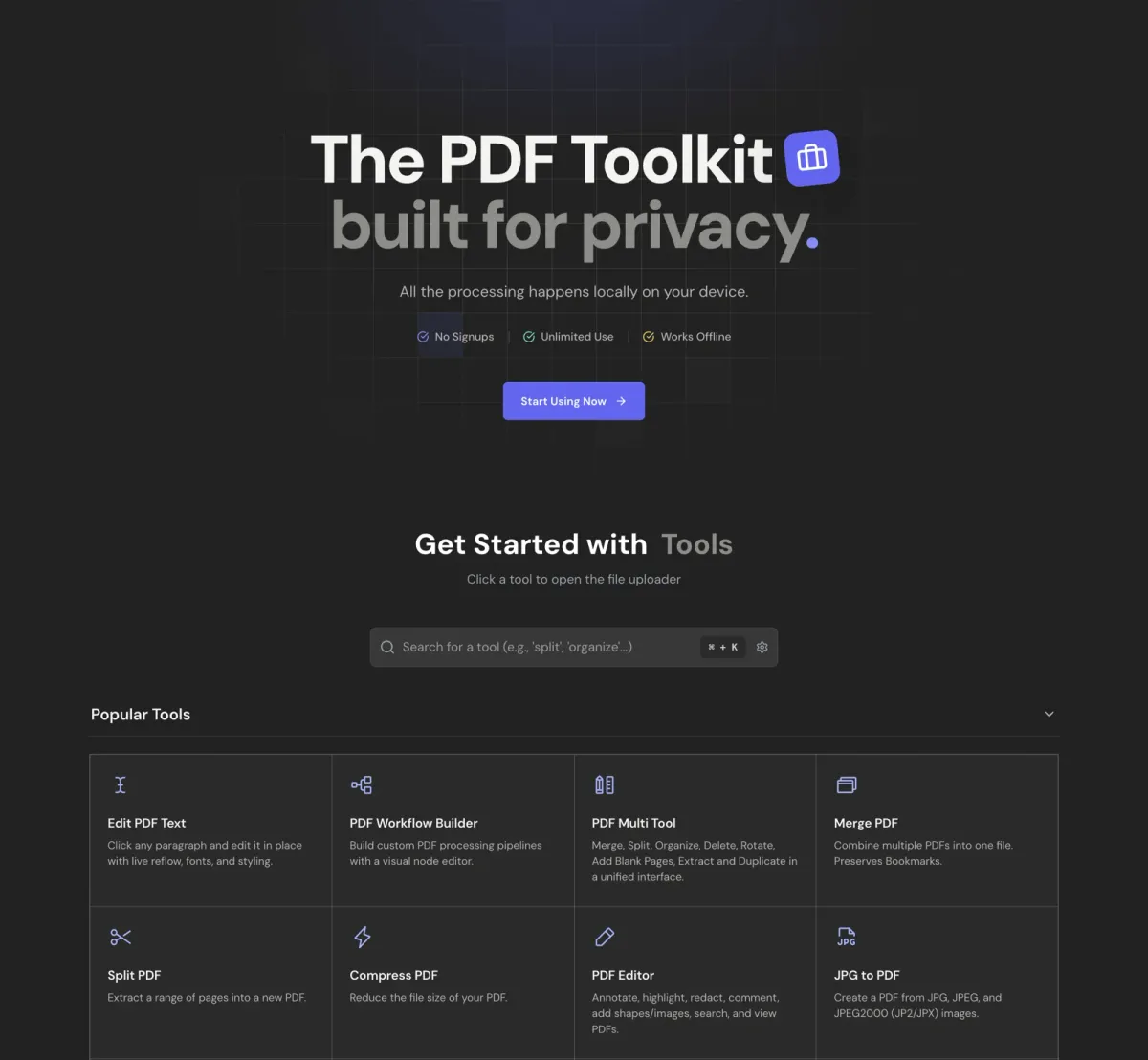
BentoPDF is a trending open-source project that solves this nicely. It's a full PDF toolkit that runs in the browser, and the processing happens on your own device instead of on a server. You can self-host it with a single container, and since it's basically a static web app, it's one of the lightest services you'll ever add to your stack.
At the time of writing, the GitHub repo has collected roughly 16,000 stars since it was created in October 2025. The current release is v2.8.10 (19 October 2026), which is also a security release, so if you already run it, scroll down to the update section.
What is BentoPDF?
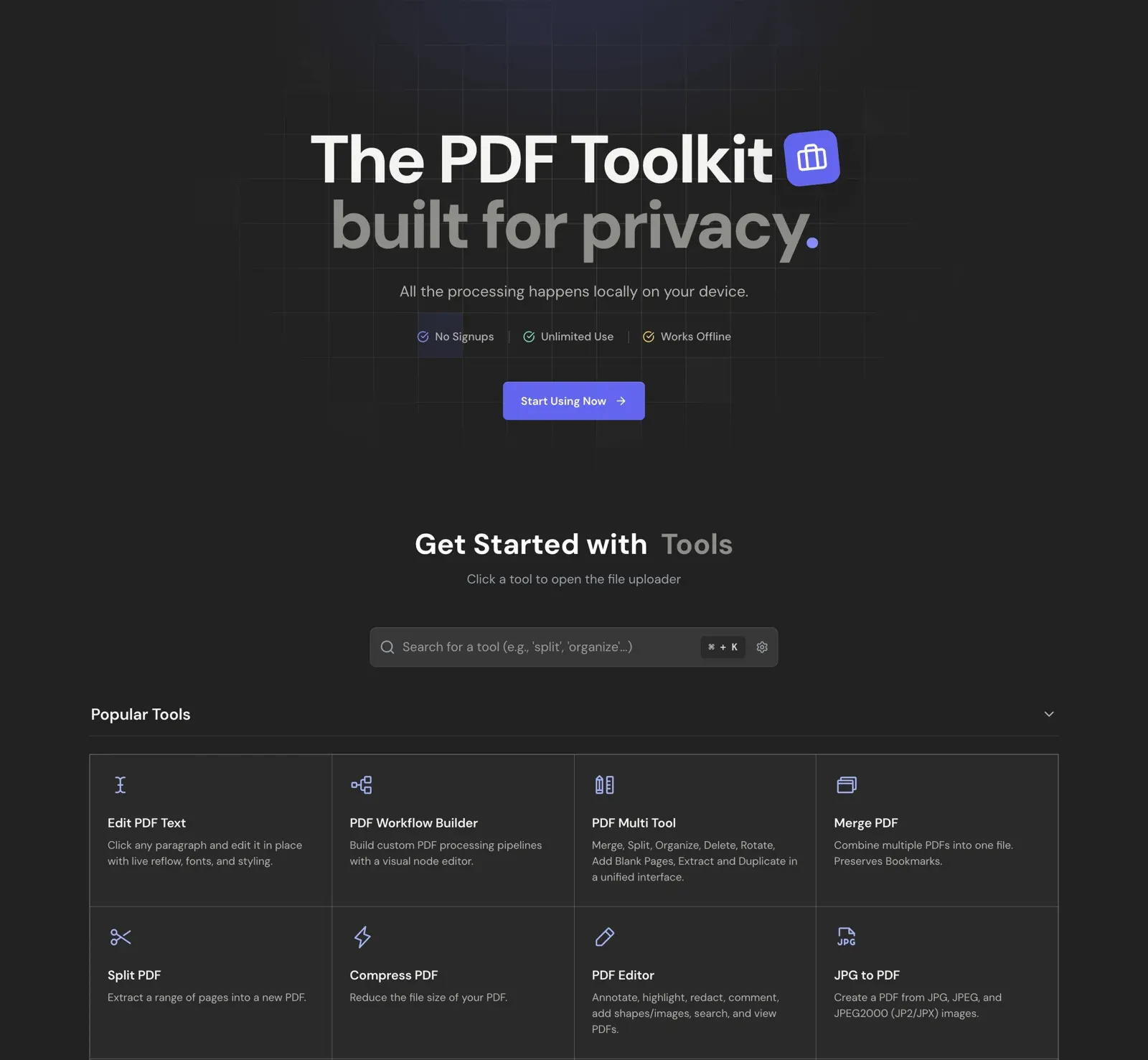
BentoPDF is a privacy-focused PDF toolkit built with web technologies. According to the project, all processing happens in your browser, files aren't uploaded to a server, and there are no usage limits or sign-ups. The heavy lifting (Office conversion, OCR, compression and so on) is done by WebAssembly (WASM) builds of libraries like LibreOffice, Tesseract, PyMuPDF and Ghostscript that run inside the browser tab.
That design has a nice side effect for self-hosters: the server only delivers static files. The official Docker image is just an unprivileged nginx serving the app, so there's no database, no worker queue and no storage volume to back up.
Key features
The tool list is long (well over 100 entries if you count every converter). The highlights:
- Organize: merge, split, reorder, rotate, delete and extract pages, N-up, booklets, attachments, and a "Multi Tool" that combines most page operations in one view.
- Edit: a PDF editor for annotations, highlights, redaction, shapes and images, plus "Edit PDF Text" for changing existing text in place (added in v2.8.8).
- Forms: fill forms (including XFA forms) and create fillable forms.
- Convert to PDF: images (including HEIC, WebP and TIFF), Word, Excel, PowerPoint and OpenDocument files, Markdown, e-books (EPUB, MOBI, FB2), comic archives, emails (EML and MSG) and more.
- Convert from PDF: images, SVG, text, JSON, CSV, Excel, and OCR to make scans searchable.
- Secure and optimize: compress, repair, encrypt and decrypt, permissions, sanitize, remove metadata, and digital signatures with X.509 certificates where, according to the docs, the private key never leaves the browser.
- Automate: a visual "PDF Workflow Builder" for chaining several steps into a pipeline.
- Self-hosting extras: custom branding, hiding specific tools through a
config.json, and many UI languages (German included).
Why self-host it?
You can of course use the public site, and since processing is local, that's already more private than the typical upload-and-convert services. Self-hosting still makes sense when:
- you want a single bookmark for your household or team that you control,
- you want to disable tools you don't need (or don't want people to use),
- you want to run it fully offline or inside an isolated network,
- you simply like having everything in your dashboard, next to tools like Yopass for sharing secrets.
Self-Hosted build vs. Commercial build
BentoPDF publishes two images, and the naming can be confusing at first:
| Image | What it is |
|---|---|
ghcr.io/alam00000/bentopdf-simple |
The Self-Hosted build ("Simple Mode"). All PDF tools, without the marketing pages (hero, FAQ, testimonials, footer). This is the one you want. |
ghcr.io/alam00000/bentopdf |
The Commercial build, which powers bentopdf.com and is meant for public-facing deployments by commercial license holders. |
The README is explicit that the Self-Hosted build is not a "lite" version: every PDF tool is included. Both images are also available on Docker Hub as bentopdfteam/bentopdf-simple and bentopdfteam/bentopdf.
Install BentoPDF with Docker Compose
Prerequisites
- A Linux host with Docker and the Docker Compose plugin.
- HTTPS if you access it from other devices. This one matters. Office file conversion uses LibreOffice WASM, which needs a browser feature (
SharedArrayBuffer) that only works in a secure, cross-origin-isolated context.http://localhostis fine for testing, but the README warns that plain HTTP on a LAN IP likehttp://192.168.x.xusually won't work. Put it behind a reverse proxy with a certificate.
Step 1: Create a folder
mkdir -p ~/docker/bentopdf && cd ~/docker/bentopdf
Step 2: Create the compose file
The minimal version, based on the official compose file, publishes the app on port 3000:
services:
  bentopdf:
    image: ghcr.io/alam00000/bentopdf-simple:2.8.10
    container_name: bentopdf
    restart: unless-stopped
    ports:
      - "3000:8080"
    # Uncomment on hosts without IPv6:
    # environment:
    #   - DISABLE_IPV6=true
I pinned the version tag instead of latest, so updates happen when you decide. The container listens on port 8080 internally (you can change that with the PORT variable) and runs as a non-root user.
Step 3: Start it
docker compose up -d
docker compose logs -f bentopdf
Open http://localhost:3000 on the same machine and you should see the tool overview.
Optional: Behind Traefik
If you already run Traefik with Let's Encrypt, drop the ports: section and add labels instead. Adjust the domain, entrypoint, certificate resolver and network name to match your own setup:
services:
  bentopdf:
    image: ghcr.io/alam00000/bentopdf-simple:2.8.10
    container_name: bentopdf
    restart: unless-stopped
    networks:
      - proxy
    labels:
      - traefik.enable=true
      - traefik.http.routers.bentopdf.rule=Host(`pdf.example.com`)
      - traefik.http.routers.bentopdf.entrypoints=websecure
      - traefik.http.routers.bentopdf.tls.certresolver=letsencrypt
      - traefik.http.services.bentopdf.loadbalancer.server.port=8080

networks:
  proxy:
    external: true
Make sure your proxy doesn't strip or overwrite the security headers the app sends, because the cross-origin isolation headers are exactly what Office conversion depends on. A quick test after deploying: convert a small .docx file. If that works, you're set.
Caddy, nginx or Nginx Proxy Manager work the same way: forward HTTPS traffic to port 8080 of the container.
Configuration tips
Hide tools you don't need
You can remove tools at runtime with a mounted config.json, no rebuild needed. Tool IDs are the page name without .html (for example edit-pdf or sign-pdf):
{
  "disabledTools": ["edit-pdf", "sign-pdf"]
}
    volumes:
      - ./config.json:/usr/share/nginx/html/config.json:ro
According to the README, disabled tools disappear from the homepage, search, shortcuts, the workflow builder and direct URLs.
Going fully offline
By default, the large WASM modules (PyMuPDF, Ghostscript, CoherentPDF) are loaded by the browser from the jsDelivr CDN. Your documents still stay on your device, but the browser does fetch code from a third-party CDN. If you want zero outside requests, for example in an air-gapped network, the repo ships a scripts/prepare-airgap.sh script that downloads the WASM packages, builds an image with your internal URLs and exports a self-contained bundle. One gotcha from the docs: the WASM files must be served from the same origin as the app.
Branding and subpaths
Custom branding and serving the app under a subpath (via BASE_URL) are supported, but they are build-time options. That means building your own image instead of pulling the official one. For most homelabs, a subdomain and the stock image are simpler.
Updating (and why you should do it now)
The v2.8.10 release notes carry a clear warning: it fixes two security advisories affecting all versions up to and including v2.8.9, and users are advised to upgrade immediately. The maintainer says full technical details will be published after the coordinated-disclosure window. So if you run an older version:
# set the image tag in compose.yaml to 2.8.10 (or newer), then:
docker compose pull
docker compose up -d
docker image prune -f
Because the app is stateless, updates are painless. There's no data to migrate, and rolling back is just changing the tag.
Limitations and things to know
- Your device does the work. Since everything runs in the browser, a huge scan on an old phone will feel slower than on a desktop. That's the price of not uploading anything.
- HTTPS is effectively required for remote access if you want Office conversion (see above).
- Digital signatures may need a CORS proxy. If your certificate requires fetching issuer certificates from external servers, the Digital Signature tool needs a proxy. The repo includes a Cloudflare Worker for that. Self-signed certificates typically don't need it.
- Licensing is dual. BentoPDF is AGPL-3.0 for free use, and there's a paid commercial license for proprietary or closed-source use. The add-on engines Kura and Hyper Compress have their own licensing terms, so if you plan to build a product on top of it, read the licensing page carefully. For personal and homelab use, AGPL is fine.
- Single maintainer pace. The maintainer mentioned in the v2.8.10 notes that releases had slowed for a while and are now returning to a weekly rhythm. Worth knowing if you rely on it heavily.
BentoPDF vs. Stirling PDF
The obvious comparison is Stirling PDF, the best-known self-hosted PDF tool (around 95,000 GitHub stars). Stirling PDF can run as a desktop app, in the browser, or as a self-hosted server with a private API, and it describes itself as open-core with paid server and enterprise plans. BentoPDF takes a different route: there's no backend at all, so it fits nicely if you want a lightweight, browser-only tool with nothing to maintain on the server. If you need an API that other services can call, Stirling PDF is the better fit.
Conclusion
BentoPDF is one of those rare self-hosted apps that takes five minutes to deploy and immediately replaces a bunch of sketchy websites. It's stateless, runs as non-root, has an impressive tool list, and keeps your documents on your device. Just remember the HTTPS requirement for Office conversion, pin your version, and update to v2.8.10 if you haven't already.
Are you running BentoPDF or Stirling PDF in your homelab? Which tool do you use most often? If you're building a dashboard for all these services, have a look at our guide to Homepage.
Sources
- BentoPDF on GitHub (README, docker-compose.yml, Dockerfile)
- BentoPDF v2.8.10 release notes
- BentoPDF self-hosting docs (Docker)
- BentoPDF licensing
- Stirling PDF on GitHub