Yopass 16: Stop Pasting Passwords Into Chat and Self-Host Encrypted One-Time Links
Yopass is an Apache-licensed, self-hosted tool for sharing passwords and files through end-to-end encrypted one-time links. What changed in v15 and v16 and how to run it with Docker Compose.
We've all done it. A colleague needs the Wi-Fi password, a friend needs the login for the family media server, or you need to hand an API key to someone setting up a new service. So the secret goes into Slack, WhatsApp, an email or a ticket, and it sits there in plain text forever, backed up, indexed and searchable.
Yopass is a small open-source tool built to fix exactly that habit. You paste a secret, Yopass encrypts it in your browser and gives you a link. The recipient opens it once, and the secret is gone. The project has been around since 2014, and it has had a busy October: v15.0.0 (October 9), v15.1.0 (October 13), a security-focused v16.0.0 (October 17) and v16.0.1 (October 23). That makes it a good time to look at what it does and how to run your own instance with Docker Compose.
What is Yopass?
Yopass is a self-hosted service for sharing passwords, files and other sensitive information. The server is written in Go, the web interface in React, and the code lives on GitHub at jhaals/yopass (a little over 3,200 stars at the time of writing). It is licensed under the Apache License 2.0.
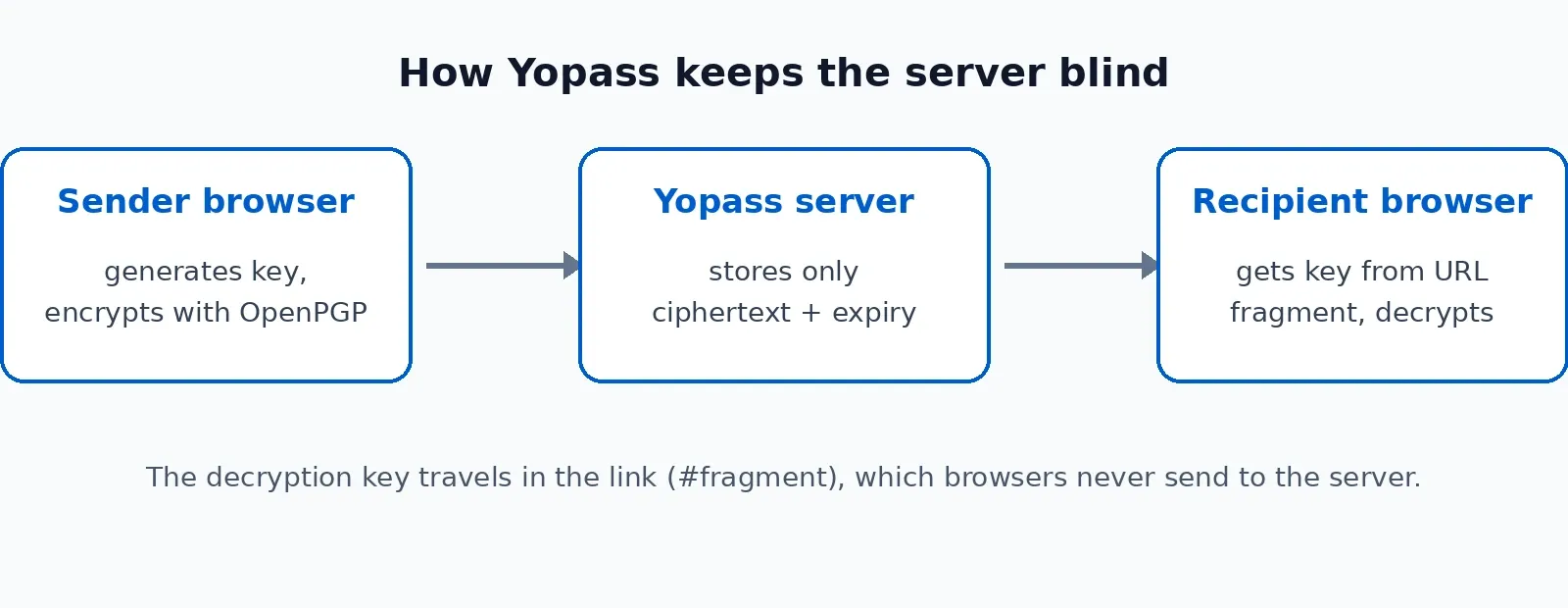
The key idea is that the server never sees your secret. According to the project's README, the flow works like this:
- Your browser generates a random decryption key and encrypts the secret locally using OpenPGP (via OpenPGP.js).
- The server only stores the encrypted message together with an expiration time.
- Yopass builds a link that carries the decryption key in the URL fragment (the part after
#). Browsers don't send the fragment to the server. - The recipient's browser downloads the encrypted message and decrypts it locally. A one-time secret is deleted after the first retrieval.
No accounts are needed for the standard flow, and the project says it collects no tracking data and stores no plaintext. You can try it on the public demo at share.yopass.se, but the maintainers themselves recommend self-hosting your own instance for anything truly sensitive.
Key features
The open-source edition includes:
- End-to-end encryption for text and files.
- One-time links and automatic expiration (one hour, one day or one week by default).
- Custom expiration (new in 15.1.0, off by default) with configurable bounds from 1 minute up to 90 days.
- Optional password protection instead of an auto-generated key.
- Memcached or Redis as the storage backend.
- Disk or S3-compatible storage for file uploads.
- Read-only mode for split deployments (more on that below).
- Prometheus metrics on a separate port.
- A command-line client for Linux, macOS and Windows (
amd64andarm64). - Multiple languages in the web UI.
It's worth being upfront that Yopass is open core. A paid business license adds OpenID Connect login, custom themes and branding, audit logging, "secret requests" (asking someone to send you a secret), read receipts, signed webhooks and file uploads larger than 1 MB. For a homelab or a small team, the free edition covers the core use case completely.
What's new in v15 and v16
The recent releases are mostly about safety and polish:
- v15.0.0 changed how links without an embedded key behave: the recipient now has to submit the key before the secret is fetched. The release notes explain that this helps stop email security scanners from "clicking" a link and burning a one-time secret before the real person sees it. For OIDC users (business edition), verified email addresses are now required by default.
- v15.1.0 added custom expiration dates,
Ctrl+Enter/Cmd+Enterto encrypt, and an option to show the short link and the key separately so you can send them over two different channels. - v16.0.0 fixes 27 security findings (15 medium, 12 low) and is a major version because some API behaviors and accepted input limits changed. If you only use the web UI, upgrading is straightforward; if you have scripts that talk to the receipt or secret-request APIs, read the upgrade notes first.
- v16.0.1 is a rebuild with a newer Go version to pick up an upstream security fix for outgoing HTTPS connections. No configuration changes are required.
Installing Yopass with Docker Compose
Yopass is a single container plus a cache. The official image is jhaals/yopass on Docker Hub, and it listens on port 1337 by default. The image is built on a distroless base and runs as a non-root user.
Important: Yopass must be served over HTTPS in production. The encryption happens in JavaScript that the server delivers, so plain HTTP would let anyone in the middle tamper with that code. Use a reverse proxy with a valid certificate.
Step 1: Create a project folder
mkdir -p ~/yopass && cd ~/yopass
Step 2: Create docker-compose.yml
This version binds Yopass to 127.0.0.1 only, so it's reachable just by a reverse proxy on the same host:
services:
  memcached:
    image: memcached
    restart: unless-stopped

  yopass:
    image: jhaals/yopass:16.0.1
    restart: unless-stopped
    depends_on:
      - memcached
    ports:
      - "127.0.0.1:1337:1337"
    environment:
      MEMCACHED: memcached:11211
      # Optional: one-time links by default and cannot be turned off
      FORCE_ONETIME_SECRETS: "true"
    healthcheck:
      test: ["CMD", "/yopass-server", "--health-check"]
      interval: 30s
      timeout: 3s
      retries: 3
Every server flag can also be set as an environment variable: take the flag name, uppercase it and replace dashes with underscores (--max-file-size becomes MAX_FILE_SIZE). Pinning the image tag (16.0.1) means updates only happen when you decide.
Step 3: Start it
docker compose up -d
docker compose ps
Open http://localhost:1337 on the host (or through an SSH tunnel) to check that the UI loads, then put it behind your proxy.
Step 4: Put it behind a reverse proxy
Caddy is the shortest option, since it handles certificates automatically:
secrets.example.com {
    reverse_proxy 127.0.0.1:1337
}
If you run Traefik with Docker labels, drop the ports: section, attach Yopass to your Traefik network and add labels along the lines of the example in the official TLS guide:
    labels:
      - "traefik.enable=true"
      - "traefik.http.routers.yopass.rule=Host(`secrets.example.com`)"
      - "traefik.http.routers.yopass.entrypoints=websecure"
      - "traefik.http.routers.yopass.tls.certresolver=le"
      - "traefik.http.services.yopass.loadbalancer.server.port=1337"
Replace the entrypoint and certificate resolver names with the ones from your own Traefik setup. The docs also point out two proxy details: make sure the proxy sends X-Forwarded-Proto: https, and disable request buffering if you want file uploads to work reliably.
Configuration tips
A few options that are worth knowing about (all from the official server options reference):
| Variable | Default | What it does |
|---|---|---|
DATABASE |
memcached |
Storage backend: memcached or redis |
REDIS |
redis://localhost:6379/0 |
Redis connection URL when using Redis |
DEFAULT_EXPIRY |
1h |
Expiration pre-selected in the UI |
FORCE_ONETIME_SECRETS |
false |
Reject secrets that aren't one-time |
ALLOW_CUSTOM_EXPIRATION |
false |
Enable custom expiration dates |
MAX_FILE_SIZE |
512KB |
Upload limit (capped at 1 MB without a license) |
DISABLE_UPLOAD |
false |
Turn off file uploads entirely |
METRICS_PORT |
-1 (off) |
Expose Prometheus metrics on a separate port |
ARGON2 |
false |
Use Argon2id instead of iterated SHA-256 for password-based keys |
Memcached vs. Redis. Memcached is the default and the simplest choice, but the docs warn that it can evict unexpired secrets under memory pressure. That's usually fine for short-lived links. If you enable long custom expirations, Redis is the better fit:
  redis:
    image: redis:7-alpine
    restart: unless-stopped

  yopass:
    # ...
    environment:
      DATABASE: redis
      REDIS: redis://redis:6379/0
Argon2 and Content Security Policy. If you enable ARGON2, the browser needs the 'wasm-unsafe-eval' CSP keyword. Yopass sends that itself, but if your reverse proxy overrides the Content-Security-Policy header, add it to script-src or decryption can silently break.
Read-only split deployment. For a small team, you can run one instance in normal mode that's only reachable over your VPN, and a second instance with READ_ONLY=true on the public internet, both sharing the same database. People inside create secrets, people outside can only open them. It's a neat way to keep the "create" form off the public internet.
Monitoring. The built-in --health-check works nicely as a Docker healthcheck, and if you already run an uptime monitor you can point it at the public URL. If you set up Healthchecks recently, that's a better fit for cron jobs than for a web app like this, but the metrics port plugs straight into Prometheus.
Using the CLI
The yopass CLI is a nice extra for admins. Download a binary from the GitHub releases page, then point it at your own server:
# ~/.config/yopass/defaults.yml
api: https://secrets.example.com
url: https://secrets.example.com
# Share a secret from stdin (one-time, 1 hour by default)
printf 'my-api-token' | yopass

# Share a file
yopass --file ./wireguard-peer.conf

# Allow multiple downloads for one day
cat notes.md | yopass --expiration=1d --one-time=false
In the docs, the api and url values are the same host when the API and frontend are served together, which is the case with the Docker image. Note that the CLI doesn't support instances protected with OpenID Connect.
Limitations and honest notes
- The link is the secret. Anyone who gets the full link before your recipient can open it. For more sensitive things, use the "separate link and key" option and send the key over a different channel, or set a password.
- You trust the server's JavaScript. End-to-end encryption in a web app only protects you as long as the served code is honest. That's another reason to self-host and keep HTTPS mandatory.
- One-time can be consumed by bots. v15.0.0 improved this for links without an embedded key, but link previews and mail scanners are worth keeping in mind.
- Expiration is a maximum, not a guarantee. With Memcached, secrets can disappear earlier under memory pressure.
- Some team features are paid. SSO, branding, audit logs and larger uploads need the business license.
- v16 changed API behavior. If you have custom integrations, read the release notes before upgrading from 15.x.
Alternatives
If Yopass isn't quite what you need, two other well-known self-hosted options are PrivateBin (a zero-knowledge pastebin with expiring and burn-after-reading pastes) and Password Pusher (shares passwords via links that expire after a number of views or days). They overlap with Yopass, but each has a different focus, so it's worth comparing their docs before picking one. If your goal is long-term storage rather than one-off sharing, a password manager such as Vaultwarden is the right tool instead.
Conclusion
Yopass does one thing and does it well: it gets secrets out of chat histories and inboxes. It's a single small container, needs no user accounts and takes about five minutes to deploy behind a reverse proxy. The burst of releases this month, including a release that fixes 27 security findings, shows that the project is actively maintained.
If you run a homelab for family or friends, or you're the person who always gets asked for passwords at work, it's an easy win. Put it next to your other tools on a Homepage dashboard, and check out our October open-source trends roundup for more projects worth a look.
Do you already self-host a secret-sharing tool? Let us know which one you use and why.
Sources
- Yopass on GitHub (README, Dockerfile, deploy examples): github.com/jhaals/yopass
- Release notes for 15.0.0, 15.1.0, 16.0.0 and 16.0.1: github.com/jhaals/yopass/releases
- Official documentation (quick start, TLS, server options, read-only mode, metrics, CLI): yopass.se/docs
- Docker image: hub.docker.com/r/jhaals/yopass