BookStack 26.09.2: A Self-Hosted Wiki for Your Homelab with Docker Compose
BookStack organizes docs in shelves, books, chapters and pages. Here is how to run version 26.09.2 with Docker Compose, what tripped me up on a fresh Ubuntu 24.04 VM, and what to watch after October's security releases.
Most homelabs end up with the same problem sooner or later: the knowledge lives in your head, in a pile of text files, or in a note app you opened once. You know that one service needs a special flag, and you know you wrote it down somewhere. BookStack is a self-hosted wiki built for exactly that gap. It is MIT-licensed, PHP-based, and it forces a structure on you that turns out to be surprisingly helpful.
BookStack is back in the self-hosting news this week. Its developer Dan Brown had a busy October with a security release (v26.09.2) on 20 October and a critical PHP advisory right after it, and the 30 October issue of Self-Host Weekly pointed to his write-up of that week. I installed 26.09.2 on a fresh Ubuntu 24.04 VM to see how it behaves, and this article is what I learned.
What BookStack is
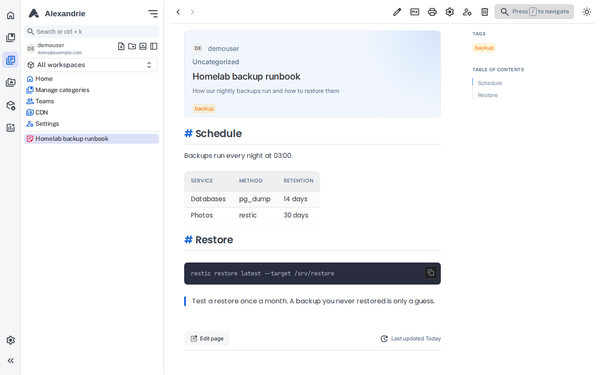
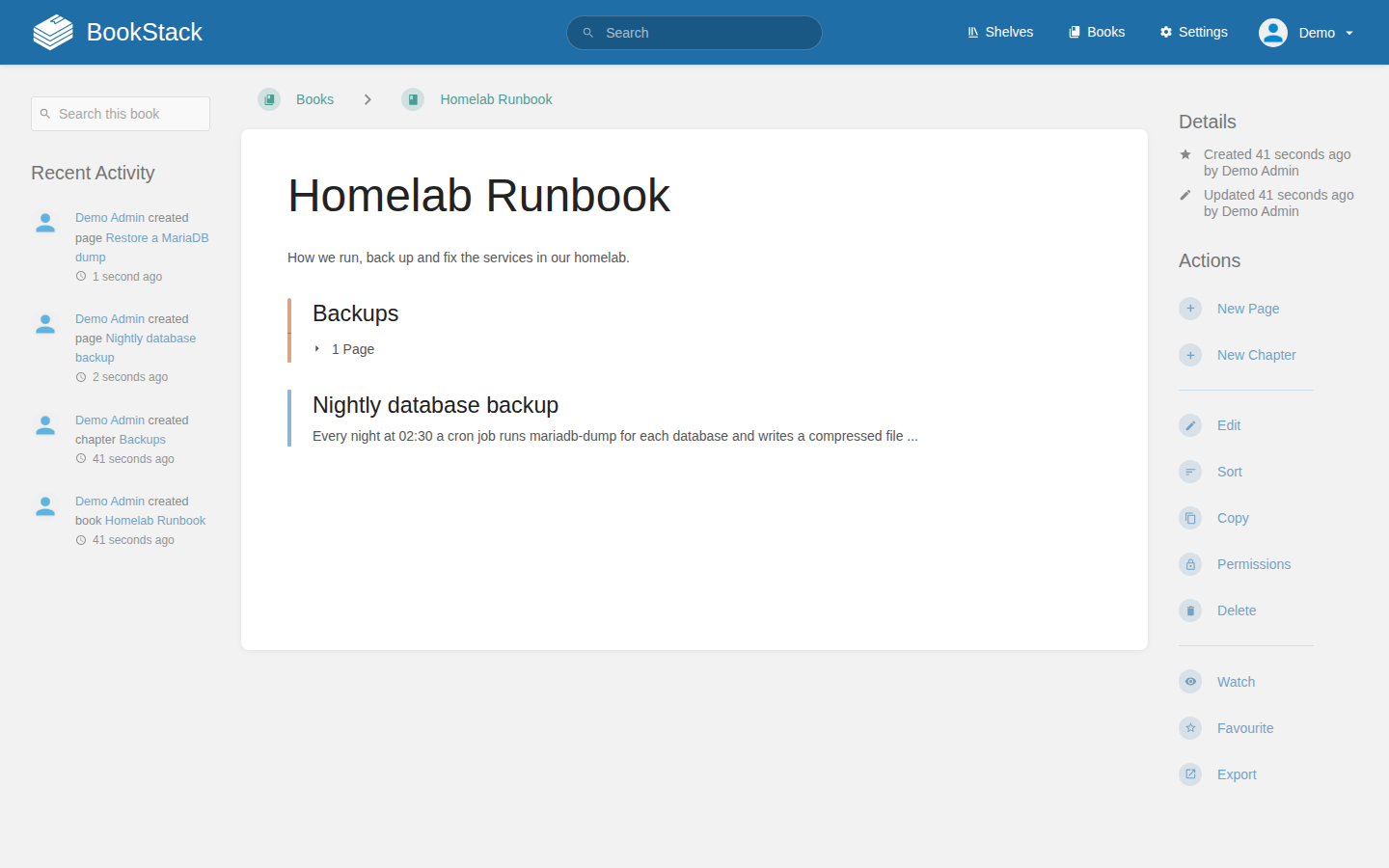
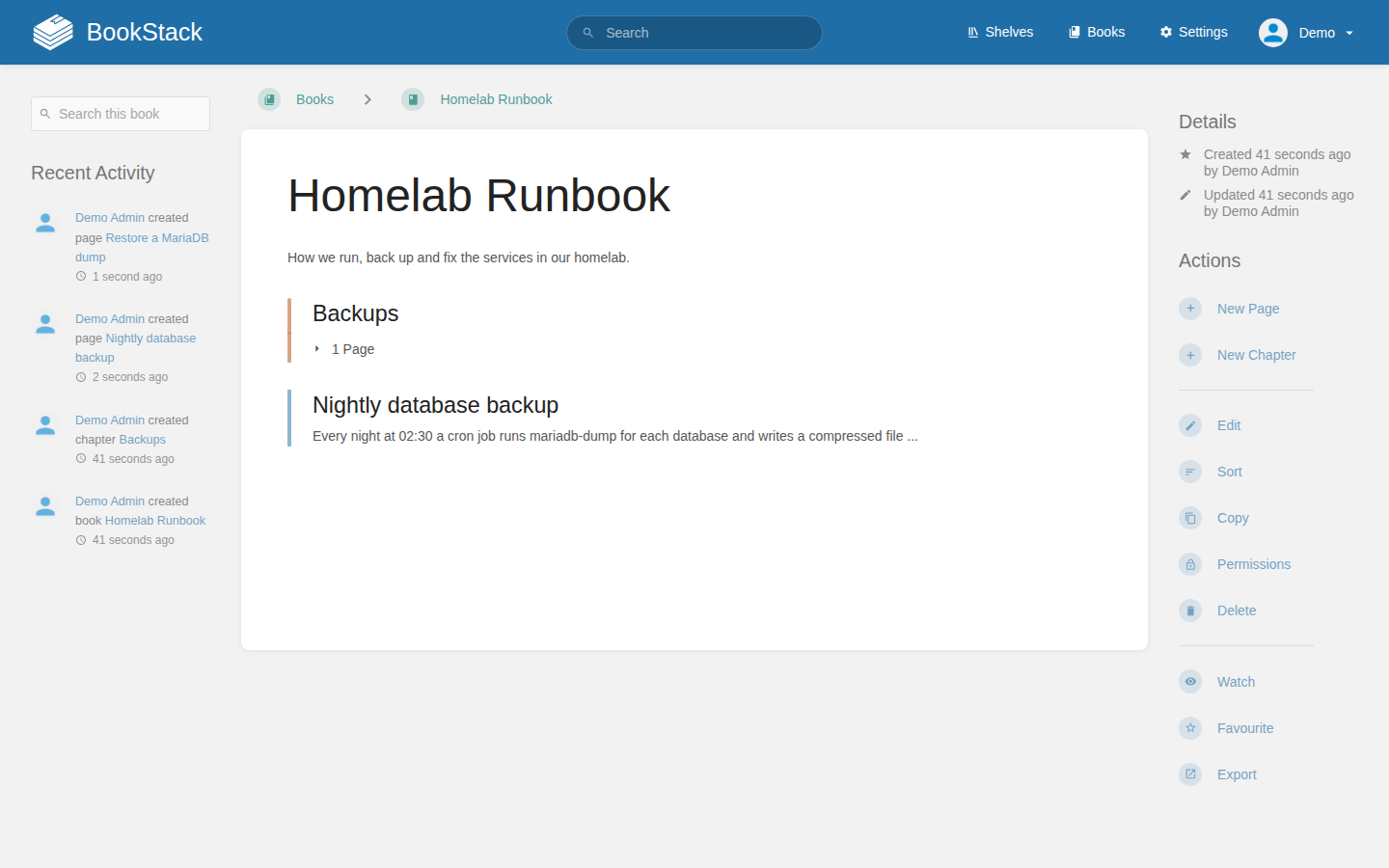
BookStack organizes content in a fixed hierarchy: shelves hold books, books hold chapters, chapters hold pages. Chapters are optional, so a page can also sit directly in a book. That sounds restrictive if you are used to free-form wikis, and it is, but it also means a new team member (or you in six months) always knows where to look and where to put something.
The project moved its home to Codeberg earlier this year. The Codeberg repository is now the primary one, and the old GitHub repository carries a note saying it is managed on Codeberg. The license is MIT.
What it can do
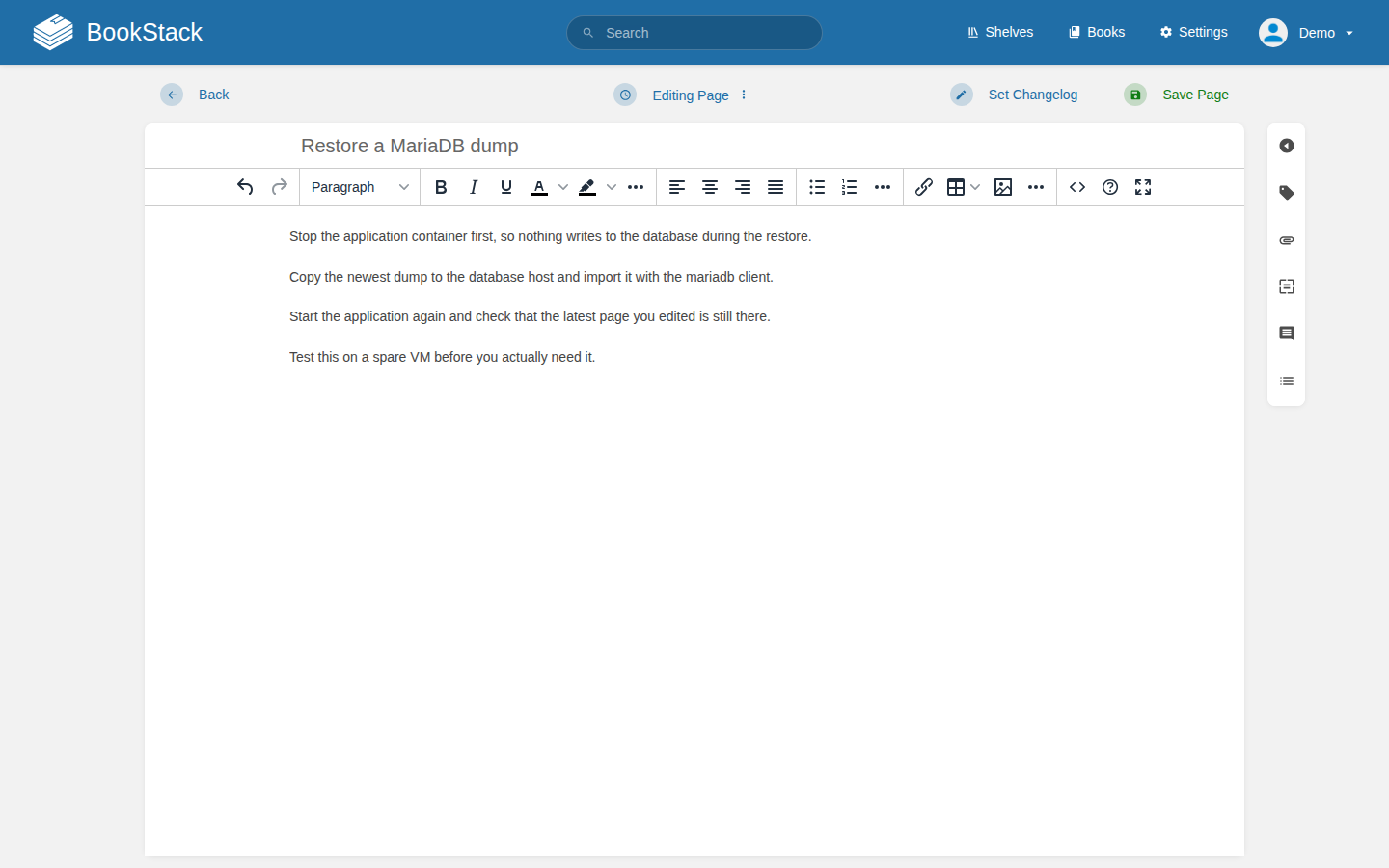
The editor is a WYSIWYG editor by default (it is TinyMCE in 26.09.2), and there is a Markdown editor for people who prefer that. Pages keep a revision history, there is a comment section under each page, and deleted items land in a recycle bin before they are gone for good. Search covers pages, chapters, books and shelves and has filters for tags, dates and ownership.
On the admin side you get roles and permissions, an audit log, webhooks, and a REST API. For logins, the documentation lists OpenID Connect, SAML 2.0, LDAP and a set of social providers, so it plays well with an existing identity provider. Content can be exported from the UI, which matters more than it sounds when you think about leaving a tool later.
Install BookStack with Docker Compose
One thing up front: BookStack does not publish its own Docker image. The official installation page lists the LinuxServer.io image and one from solidnerd as community options, and the example compose file in the project's devops repository says in a comment that these containers are maintained by the LinuxServer.io team, not by the BookStack project. I used the LinuxServer.io image, since the project's own example is built around it. It needs a MariaDB or MySQL database next to it (the docs list MySQL 8.0+ or MariaDB 10.6+).
The setup below is based on that example, with the version pinned, secrets moved into a .env file, the database kept off the network, and the web port bound to localhost so you can put a reverse proxy in front. I ran exactly these steps on a fresh Ubuntu 24.04 VM with 2 vCPUs and 1.8 GB of RAM.
Step 1: Create a project folder
mkdir -p ~/bookstack && cd ~/bookstackStep 2: Create the compose file
Save this as compose.yaml. The image tag version-v26.09.2 is the one the project's example uses for this release, and the MariaDB tag matches the example too.
services:
  bookstack:
    image: lscr.io/linuxserver/bookstack:version-v26.09.2
    container_name: bookstack
    restart: unless-stopped
    depends_on:
      mariadb:
        condition: service_healthy
    environment:
      - PUID=1000
      - PGID=1000
      - TZ=Etc/UTC
      - APP_URL=${APP_URL}
      - APP_KEY=${APP_KEY}
      - DB_HOST=mariadb
      - DB_PORT=3306
      - DB_DATABASE=bookstack
      - DB_USERNAME=bookstack
      - DB_PASSWORD=${DB_PASSWORD}
    volumes:
      - ./bookstack_app_data:/config
    ports:
      - "127.0.0.1:6875:80"

  mariadb:
    image: lscr.io/linuxserver/mariadb:11.4.9
    container_name: bookstack_mariadb
    restart: unless-stopped
    environment:
      - PUID=1000
      - PGID=1000
      - TZ=Etc/UTC
      - MYSQL_ROOT_PASSWORD=${DB_ROOT_PASSWORD}
      - MYSQL_DATABASE=bookstack
      - MYSQL_USER=bookstack
      - MYSQL_PASSWORD=${DB_PASSWORD}
    volumes:
      - ./bookstack_db_data:/config
    healthcheck:
      test: ["CMD-SHELL", "mariadb-admin ping -h 127.0.0.1 -u root -p$${MYSQL_ROOT_PASSWORD} --silent || exit 1"]
      interval: 10s
      timeout: 5s
      retries: 12
      start_period: 30s
The health check is only a liveness ping, but it is enough to make BookStack wait until MariaDB is accepting connections.
Step 3: Generate the secrets
BookStack needs an application key, and the image ships a small helper to generate one. The commands below create it, add random database passwords, and write everything to a .env file. Replace wiki.example.com with the address you will actually use.
APPKEY=$(docker run --rm --entrypoint /bin/bash lscr.io/linuxserver/bookstack:version-v26.09.2 appkey | tail -1)

cat > .env <<EOF
APP_URL=https://wiki.example.com
APP_KEY=$APPKEY
DB_PASSWORD=$(openssl rand -hex 16)
DB_ROOT_PASSWORD=$(openssl rand -hex 16)
EOF

chmod 600 .env
The key starts with base64:, and that prefix has to stay. Keep a copy of the .env file somewhere safe.
Step 4: Start it
docker compose up -dOn the test VM with the images already pulled, the login page answered about 36 seconds after I started the stack. Most of that is MariaDB initializing and BookStack running its database migrations on the first boot, so do not panic if the first request fails for half a minute. BookStack has a small health endpoint you can use to check:
curl -s http://127.0.0.1:6875/status
# {"database":true,"cache":true,"session":true}
Step 5: Log in and change the default account
A fresh install has a default administrator: admin@admin.com with the password password. Log in, then go to Settings, Users and change the name, the email address and the password straight away. I did exactly that during the test. Do not leave this step for later, especially if the instance is reachable from the internet.
The APP_URL trap
This is the one thing that cost me time. APP_URL has to match the address you open in the browser. In my first attempt I had a localhost address in APP_URL but opened the site through 127.0.0.1. The browser ended up on the localhost address during the login (my guess is that the session cookie did not carry over between the two hostnames), and the login ended with a "419 Page Expired" error. Opening the site through the exact host in APP_URL fixed it immediately.
If you run it behind a reverse proxy, point the proxy at 127.0.0.1:6875, terminate TLS there, and set APP_URL to the public HTTPS address. If you change APP_URL after you already have content, run the URL update command from the LinuxServer.io documentation so that stored links are rewritten:
docker exec -it bookstack php /app/www/artisan bookstack:update-url https://old.example.com https://wiki.example.com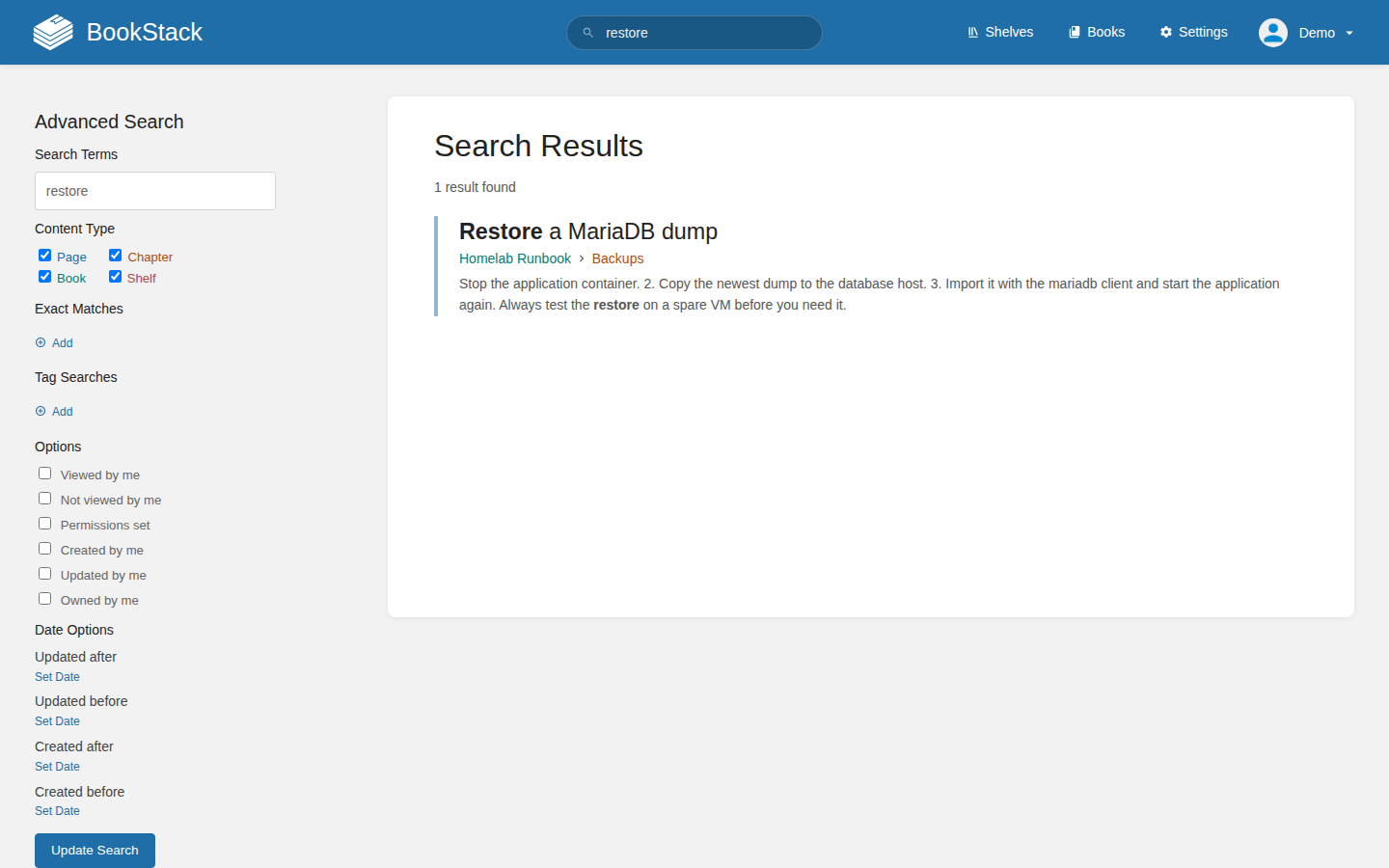
Tips for running it
Resource use. It is light. With a small demo book in place, docker stats showed roughly 78 to 89 MiB for the BookStack container and 94 to 96 MiB for MariaDB. That was a quiet instance with one user, so a busy team wiki will use more, but a small VM is plenty.
Backups. Two things matter: the database and the bookstack_app_data folder, which holds uploaded images and files, the generated .env and the logs. The LinuxServer.io image keeps uploads under /config/www/images and /config/www/files, which end up in that folder on the host. A database dump you can run from the project folder:
docker compose exec -T mariadb sh -c 'mariadb-dump -u bookstack -p"$MYSQL_PASSWORD" bookstack' > bookstack-$(date +%F).sql
tar czf bookstack-data-$(date +%F).tar.gz bookstack_app_data
I tested the dump and found the page titles from my demo content in it. One oddity: dumping as the MariaDB root user with the root password from the .env was refused with "access denied" in my test, so the command above uses the application user instead, which is enough for a single-database dump. The project's own backup and restore page is worth a read before you rely on any of this, and a restore test on a spare machine is worth more than any command.
Updates. Change the tag in compose.yaml to the new release, then run docker compose pull and docker compose up -d. Take a backup first. Given the release history below, check the BookStack blog or subscribe to its security alert mailing list.
Email and webhooks. The image documents an optional QUEUE_CONNECTION=database setting that makes actions like sending email or triggering webhooks run asynchronously. I did not test email, so check the email and webhooks documentation if you need it.
Limits and security
BookStack is a PHP application, and its recent history deserves honesty. Between 29 July and 20 October 2026 the project shipped four security releases (v26.05.3, v26.05.4, v26.05.5 and v26.09.2). That is not unusual for an actively audited project, and fixing things quickly is good, but it means you must be able to update promptly. For v26.09.2 itself, the two named issues were comments of deleted pages staying visible through the API while the page was in the recycle bin, and attachments of draft pages being modifiable by other users with attachment permissions. The release also tightened a few other things, for example it now drops remember-me cookies when a user changes their password.
Then there is PHP itself. Right after that release the PHP project announced a critical security release, and the BookStack team published a notice telling people with internet-facing instances to consider taking them offline until PHP was patched. The notice lists PHP 8.5.12 among the fixed versions, and the container I tested (image build v26.09.2-ls294) reported PHP 8.5.12. Whenever you pull an image, check which PHP version is inside, and do not expose an old image to the internet.
A few more limits. The Docker image is a community effort, not the project's own. The documentation says BookStack does not support shared PHP hosting, and that high availability setups are not something the project promises to support. Some things are simply not the point: the strict book and chapter structure will annoy you if you want a free-form graph of linked notes. Finally, do not publish the MariaDB port, and keep the web port on localhost behind a reverse proxy with HTTPS, as in the compose file above.
How it compares
The BookStack project itself keeps a list of alternatives and refuses to rank them, which I find refreshing. A short, subjective version: DokuWiki needs no database at all and is the simplest thing to back up, but it feels like a classic wiki and not a book. Wiki.js is a Node.js wiki and a good fit if you prefer that stack. Otter Wiki is a minimalist Python wiki using Markdown and git, which suits people who want their docs as files in a repository. Trilium Notes is more of a personal knowledge base. BookStack's pick-up-and-use structure and its login options make it a good middle path for a household or small team.
Verdict
I would run BookStack for a homelab runbook, a family wiki or a small team's documentation, and I would not hesitate to install it. The Compose stack came up on the first try (apart from the APP_URL detour), the footprint is small, and the book-chapter-page structure does force you to write things down in a findable place. The price is operational: you need to keep up with updates, you need to take backups seriously, and you should treat the default admin login as a bug until you have changed it. If you can do that, it is one of the more pleasant tools in this category.
Sources
- BookStack repository on Codeberg
- BookStack v26.09.2 release notes
- BookStack Security Release v26.09.2 (blog)
- Critical PHP Security Release (BookStack blog)
- BookStack installation documentation
- BookStack backup and restore documentation
- Example Docker Compose file (BookStack devops repository)
- LinuxServer.io BookStack image documentation
- Other open source documentation platforms (BookStack)
- Self-Host Weekly, 30 October 2026