Plain Week: A Self-Hosted, Offline-First Weekly Planner in One Docker Container
Plain Week is a minimal, MIT-licensed weekly planner that works offline and syncs through your own server. We tested version 0.3.15 with Docker Compose: one container, SQLite, about 130 MiB of RAM.
A lot of self-hosted task managers come with projects, labels, Kanban boards and team permissions. Sometimes you just want to see your week on one screen and type into it. That's the whole idea behind Plain Week, a small MIT-licensed weekly planner that showed up as the featured project in Self-Host Weekly on 6 November and has been shipping several releases a week.
Plain Week is offline-first. You can open it and start planning without an account, and your tasks live in the browser. If you want them on more than one device, you create an account on your own server and the app syncs through it. The self-hosted version is one container with SQLite, nothing else.
I set up version 0.3.15 with Docker Compose on a fresh Ubuntu 24.04 VM, clicked through the planner, created an account and checked that the tasks actually landed in the server database. Here's how that went.
What Plain Week does
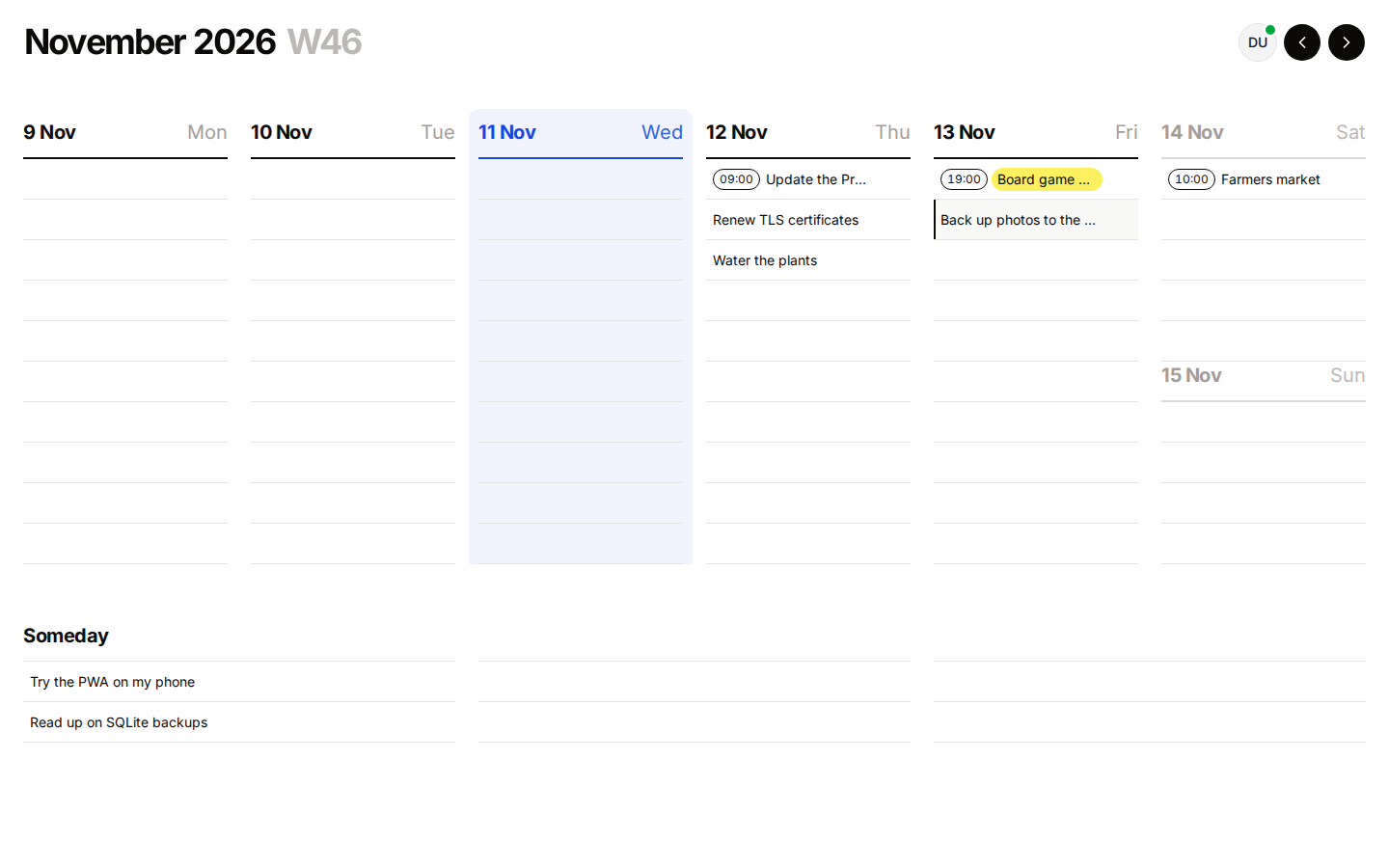
The main screen is the current week: Monday to Friday side by side, Saturday and Sunday stacked in the last column, and a "Someday" area at the bottom for things without a date. You click an empty row, type, hit Enter and keep typing. There are no forms in the way.
A few small parsing tricks make that fast. If a task starts with a time, like 09:00 Update the Proxmox host, the time is pulled out and shown as a badge, and in my test timed tasks moved to the top of their day. Since 0.3.15 you can also start with a date: I typed 14 Nov 10:00 Farmers market into Wednesday, and the task landed on Saturday at 10:00 with a small "Added to Sat 14 Nov" toast. According to the changelog, that date shortcut understands English and Spanish month names only.
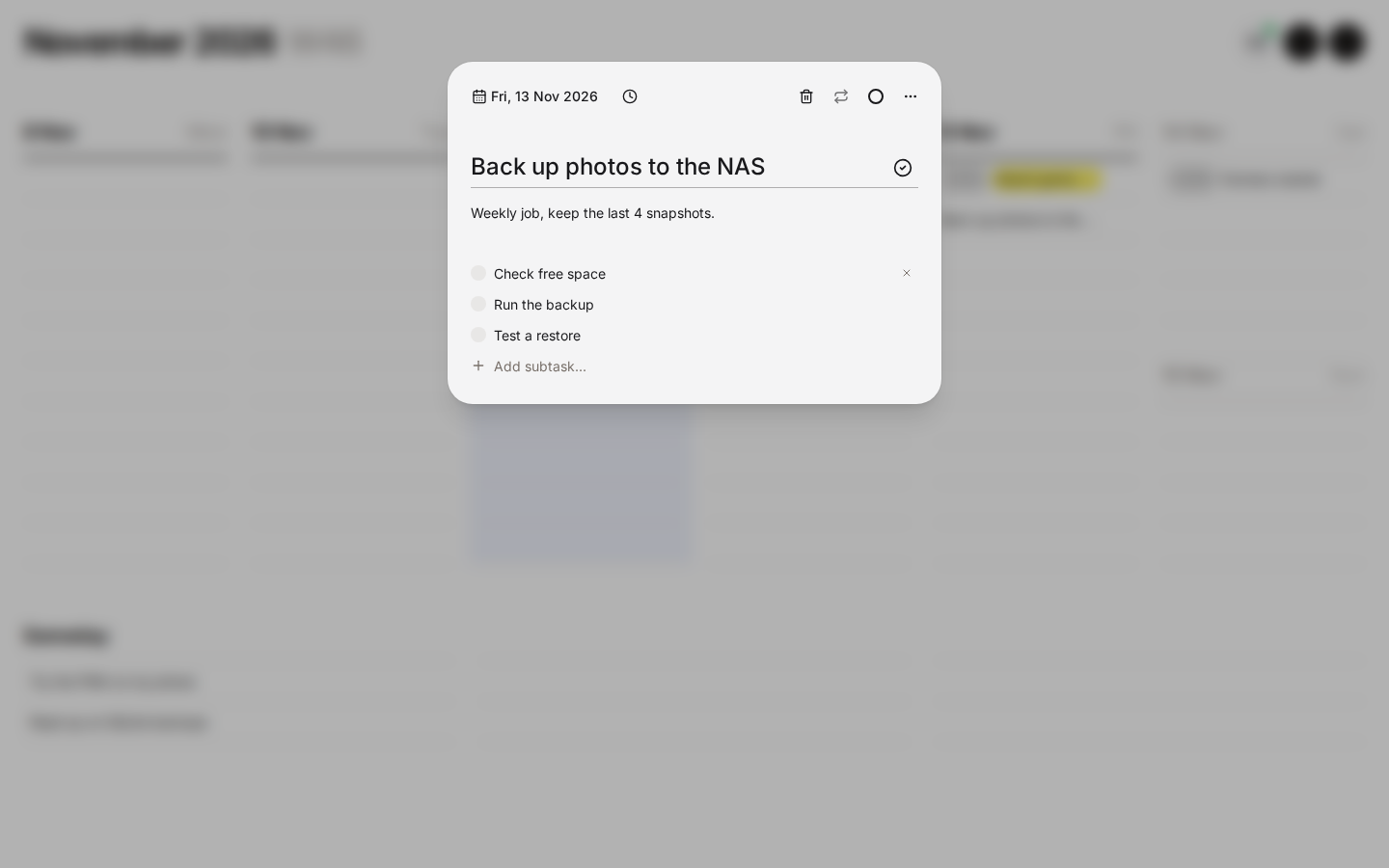
Clicking a task opens a compact dialog with the date, time, notes, a subtask checklist, a repeat option and a color picker. Right-clicking a task gives you a context menu to change its color, push it to tomorrow, next week or Someday, duplicate it or delete it, and each entry shows its keyboard shortcut.
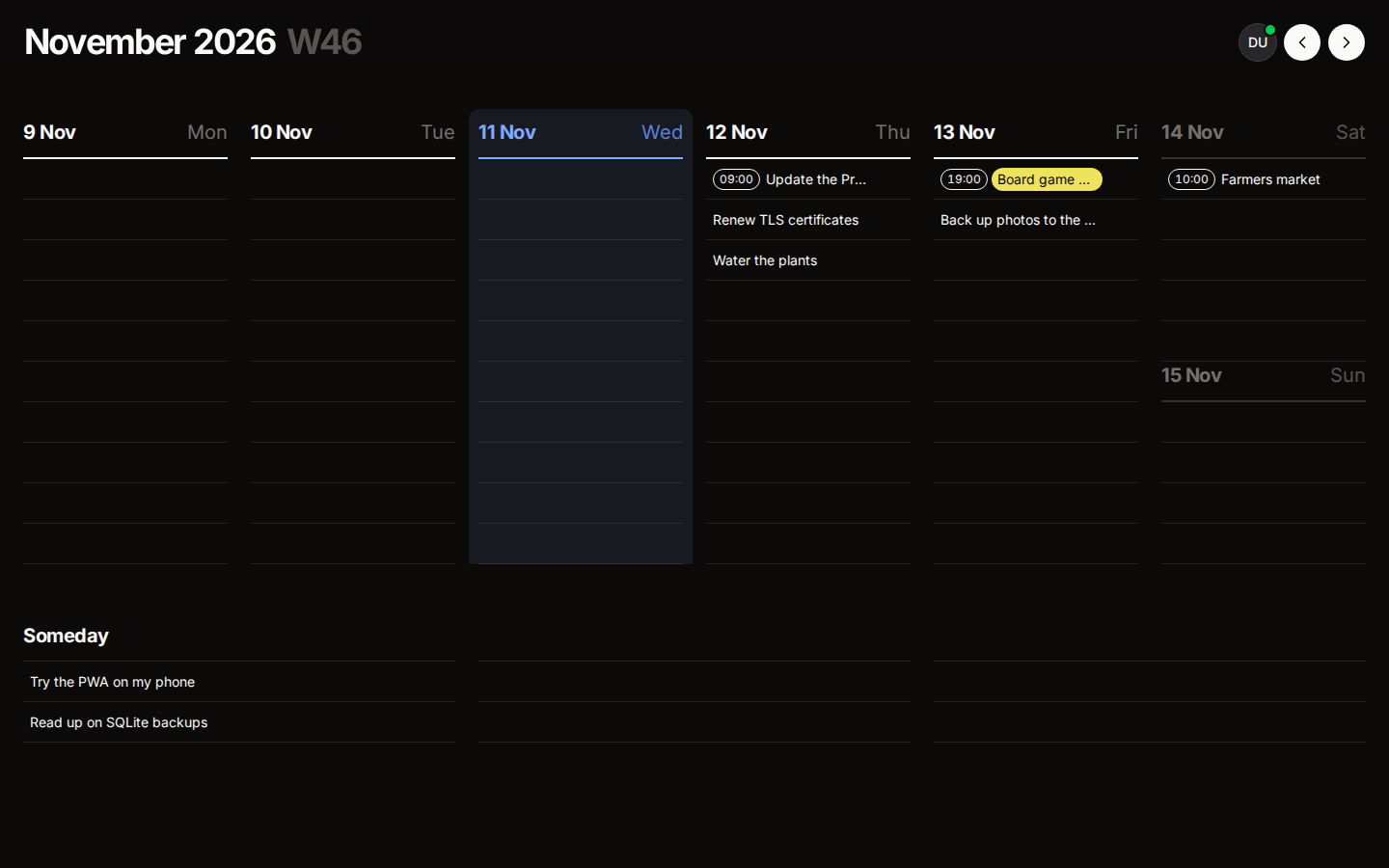
Recurring tasks are supported (every N days, weekly on chosen weekdays, or monthly on a given day, with an optional end date). There's a light and a dark theme, the app installs as a PWA, and it keeps working without a connection because the data sits in IndexedDB.
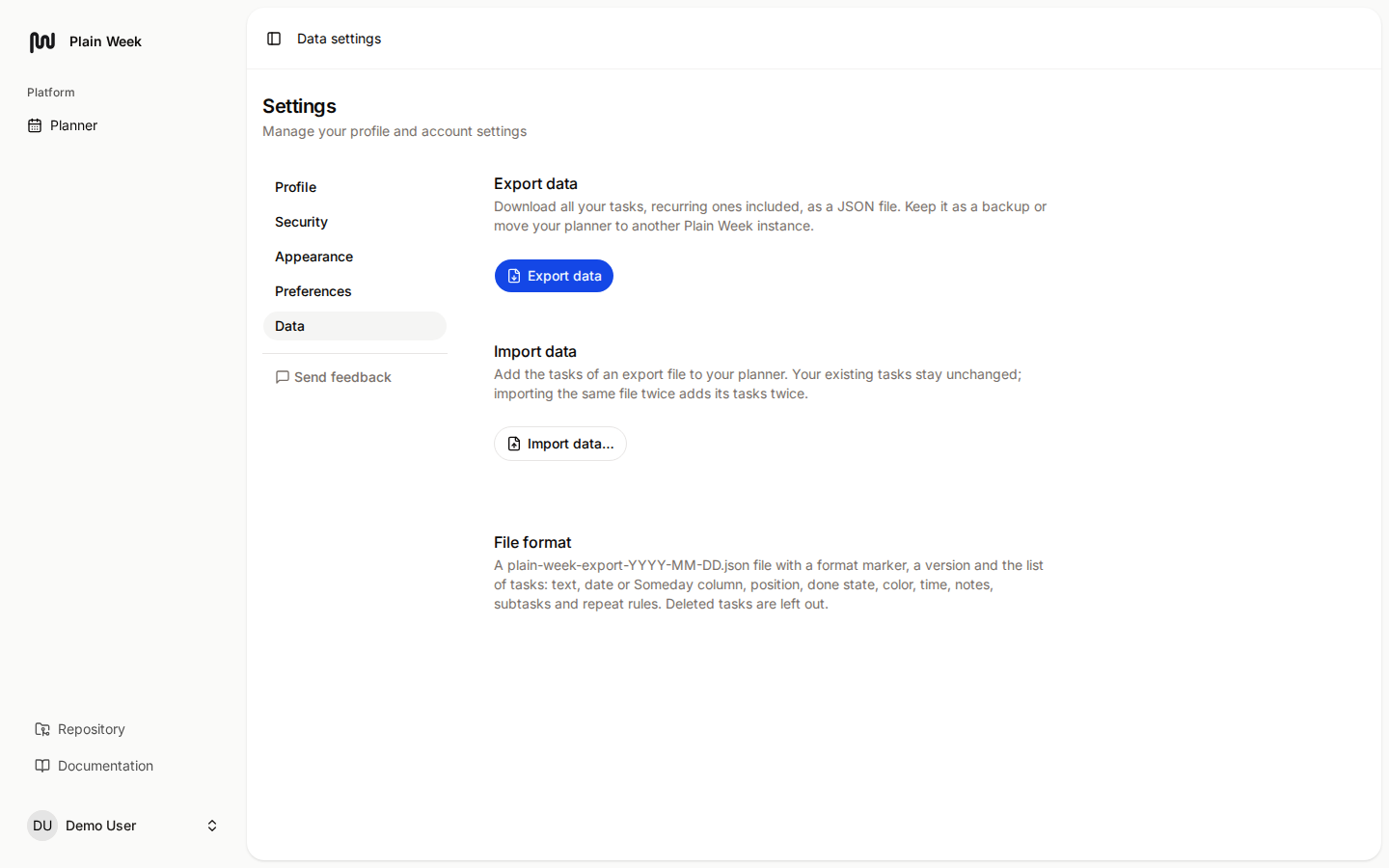
Two integrations are optional and stay hidden until you configure them: a one-way sync of dated tasks into a dedicated Google Calendar, and browser push notifications (a morning summary plus a reminder five minutes before timed tasks). I didn't set up either for this test. With neither configured, the settings only showed Profile, Security, Appearance, Preferences and Data. The docs say the integration and notification pages stay hidden until their variables are set, and that's what I saw.
Guest mode vs. account
This distinction matters for self-hosters. As a guest, everything stays in that one browser. Clear your site data and the tasks are gone. Once you create an account on your instance, the browser syncs with the server, and the JSON export and import under Settings › Data become available.
When I signed up in the test, the tasks I'd typed as a guest came along into the account, while the built-in tutorial tasks that a fresh install shows disappeared. A quick look into the SQLite file afterwards showed one user and all eight of my tasks on the server.
What you need
- A Linux host with Docker and the Compose plugin. The image is built for
linux/amd64andlinux/arm64. - Very little memory. The docs ask for about 256 MB of free memory and say the container uses about 125 MB at rest.
- For anything beyond
localhost: a domain and a reverse proxy that terminates HTTPS. The offline mode relies on a service worker, and browsers only allow those over HTTPS or onlocalhost.
Installing Plain Week with Docker Compose
1. Create a folder and download the compose file
The project ships a compose file in its repository. Grab the one from the 0.3.15 tag so it matches the image you're about to run:
mkdir plain-week && cd plain-week
curl -fsSLO https://raw.githubusercontent.com/victor-falcon/plain-week/v0.3.15/deploy/docker-compose.yml
2. Pin the version
The upstream file uses the latest tag. I prefer to update on purpose, so replace it with the release tag:
sed -i 's#ghcr.io/victor-falcon/plain-week:latest#ghcr.io/victor-falcon/plain-week:0.3.15#' docker-compose.ymlAfter that edit, the file (minus its comment header) looks like this:
services:
    plainweek:
        image: ghcr.io/victor-falcon/plain-week:0.3.15
        restart: unless-stopped
        ports:
            - '127.0.0.1:8080:8080'
        volumes:
            - plainweek-storage:/app/storage
        environment:
            APP_KEY: ${APP_KEY:?Set APP_KEY in .env (see the comment at the top of docker-compose.yml)}
            APP_URL: ${APP_URL:-http://localhost:8080}
            APP_NOINDEX: ${APP_NOINDEX:-false}
            TRUSTED_PROXIES: ${TRUSTED_PROXIES:-127.0.0.0/8,10.0.0.0/8,172.16.0.0/12,192.168.0.0/16,::1,fc00::/7}
            MAIL_MAILER: ${MAIL_MAILER:-log}
            MAIL_SCHEME: ${MAIL_SCHEME:-}
            MAIL_HOST: ${MAIL_HOST:-}
            MAIL_PORT: ${MAIL_PORT:-587}
            MAIL_USERNAME: ${MAIL_USERNAME:-}
            MAIL_PASSWORD: ${MAIL_PASSWORD:-}
            MAIL_FROM_ADDRESS: ${MAIL_FROM_ADDRESS:-hello@example.com}
            MAIL_FROM_NAME: ${MAIL_FROM_NAME:-Plain Week}
volumes:
    plainweek-storage:
Note that the port is already bound to 127.0.0.1. That's a sensible default: the app speaks plain HTTP on port 8080 and is meant to sit behind a reverse proxy.
3. Generate the app key and set the URL
APP_KEY is the only required setting. It encrypts sessions and cookies, so generate it once and keep it. Changing it later signs everyone out. The container refuses to start without a valid key.
echo "APP_KEY=base64:$(openssl rand -base64 32)" > .env
echo "APP_URL=http://localhost:8080" >> .env
chmod 600 .env
For a public instance, set APP_URL to the real address instead, for example https://plan.example.com. With an https:// URL, the session cookie is marked secure automatically.
4. Start it
docker compose up -d
docker compose ps
On first start, the entrypoint creates the SQLite database and runs the migrations, then FrankenPHP serves the app on port 8080 as an unprivileged user (uid 1000). The image has a built-in health check against /up. In my test, the container went from nothing to "healthy" in under 20 seconds, including pulling the image. Open http://localhost:8080 (or tunnel to it over SSH) and you'll see the week view with a few tutorial tasks.
5. Put it behind a reverse proxy
Plain Week needs to live at the root of its domain, not under a sub-path, because the service worker and the offline shell assume /. With Caddy, the docs' example is as short as it gets:
plan.example.com {
	reverse_proxy 127.0.0.1:8080
}
Your proxy needs to pass X-Forwarded-Proto and X-Forwarded-Host. Caddy and Traefik do that by default; with nginx you add the two proxy_set_header lines yourself. The container trusts these headers from loopback and private networks unless you change TRUSTED_PROXIES.
Resource usage in practice
Right after the container turned healthy, docker stats showed about 129 MiB of RAM and near-zero CPU. After I'd clicked through the planner, signed up and added tasks, it sat at about 164 MiB. That's one container running the web server, the Laravel scheduler and a queue worker side by side, so there's nothing else to add.
The image itself is less tiny. Docker reported roughly 1.1 GB for the unpacked image, which is a lot for a to-do app if you're tight on disk.
Tips from the test
Set APP_NOINDEX=true on a public instance. It adds a noindex header and meta tag and makes /robots.txt disallow all crawlers. There's no reason for search engines to see your planner's login page.
Configure SMTP if more than one person uses it. By default, emails go to the container logs (MAIL_MAILER=log), so password reset links never reach anyone. The app still works without mail. My demo account showed an "email unverified" notice, but nothing was blocked.
Notifications and Google Calendar need extra variables. The compose file in 0.3.15 doesn't pass the VAPID or Google variables to the container. If you want push notifications, you'll have to add VAPID_PUBLIC_KEY, VAPID_PRIVATE_KEY and VAPID_SUBJECT to the environment block yourself (and GOOGLE_CLIENT_ID/GOOGLE_CLIENT_SECRET for the calendar sync). The self-hosting guide explains how to generate the keys.
Back up the volume. Everything the server stores sits in one SQLite file under /app/storage. The docs describe an online backup with SQLite's backup API via docker exec and, alternatively, stopping the container and tarring the volume. The docs' commands use a container called plainweek. With Compose, the container gets a generated name such as plain-week-plainweek-1 (check with docker compose ps), and the volume gets the project prefix, for example plain-week_plainweek-storage. Adjust the names before you copy the commands.
Updating is the usual docker compose pull && docker compose up -d after changing the tag. Migrations run automatically on start, so back up first.
Limits and security notes
Plain Week is young. The repository was created in mid-October 2026, it's still at version 0.x, and releases come out at a pace of several per week. That's great for features, but expect changes, and don't skip backups before updates.
Sign-up is open. In 0.3.15 I didn't find a setting in the docs or the shipped config to disable registration, so anyone who can reach your instance can create an account. For a personal planner, I'd keep it behind a VPN, Tailscale or an authenticating reverse proxy rather than exposing it to the whole internet.
Guest data is fragile. Without an account, the tasks only exist in one browser's storage, and the JSON export is tied to having an account. If you use Plain Week seriously, create an account even if you're the only user.
It's a personal tool. I didn't see shared lists, team features or project hierarchies, and that seems to be by design. The codebase also contains the billing code for the hosted plainweek.eu service, but on a self-hosted instance SAAS_ENABLED defaults to false, which means accounts are free, sync has no limits and the billing routes return 404.
Plain Week vs. the alternatives
On GitHub, the project tags itself as a Tweek alternative, so it's aimed at people who like that week-on-one-page style of planning. Among self-hosted options, these are the obvious comparisons:
- Will Be Done (AGPL-3.0) is the closest in spirit: a local-first task manager built around a visual weekly timeline, with SQLite and a single Docker command.
- Vikunja (AGPL-3.0) is a full task manager with projects and subprojects, list, Gantt, table and Kanban views, sharing with users and teams, and CalDAV. More powerful, but also a lot more than a weekly planner.
- Super Productivity (MIT) focuses on timeboxing and time tracking and integrates with Jira, GitLab, GitHub and OpenProject.
If you want structure, Vikunja is the safer bet. If you want the week on one screen and nothing else, Plain Week is the smaller tool for that job.
Conclusion
Plain Week covers weekly planning and leaves everything else out. In my test, fast entry with time and date shortcuts worked as described, sync to my own server worked on the first try, and the single container stayed well under 200 MiB of RAM. The open registration and the project's young age are the two things to keep in mind, and both are easy to live with if you keep the instance private and back up the SQLite volume.
If you already run a dashboard like Homepage, add a link to your Plain Week instance there so your week is one click away.
Sources
- Plain Week on GitHub (README)
- Plain Week v0.3.15 release
- Plain Week changelog (v0.3.15)
- Plain Week self-hosting guide (v0.3.15)
- Plain Week docker-compose.yml (v0.3.15)
- Plain Week license (MIT)
- Plain Week container image on GHCR
- Self-Host Weekly, 6 November 2026
- Will Be Done on GitHub
- Vikunja on GitHub and Vikunja features
- Super Productivity on GitHub