Mail-Archiver 2610.1: Self-Host a Searchable Archive of All Your Email with Docker Compose
Mail-Archiver pulls copies of your IMAP, Microsoft 365 or Outlook.com mail into PostgreSQL and gives you search, exports and retention rules. We installed version 2610.1 with Docker Compose on a fresh VM and imported a demo mailbox.
Most of us treat our mailbox as an archive without ever deciding to. Ten years of invoices, warranty receipts, password resets and the occasional important email from a family member all sit on a provider's server, and the only backup is the hope that the account never gets locked, migrated or quietly trimmed. That is fine right up until it isn't.
Mail-Archiver is a self-hosted web app that pulls copies of your mail into a PostgreSQL database you control, keeps syncing new messages in the background, and gives you a search interface and exports on top. It has been showing up in "new self-hosted apps" roundups this autumn, ships a release almost every month, and version 2610.1 landed on October 11, 2026. We installed it with Docker Compose on a fresh Ubuntu 24.04 VM, imported a demo mailbox and poked at it for a while. Here is what we found.
What Mail-Archiver does
At its core, Mail-Archiver is a collector. You add one or more mail accounts, it fetches every message once (a full sync) and then checks for new mail on a schedule, by default every 15 minutes. Messages, attachments and folder names end up in PostgreSQL, and the web UI lets you browse, search and export them. Duplicates are skipped by Message-ID, so running a sync twice or importing the same file again does not create copies.
The app is written in ASP.NET Core with a Bootstrap front end and is licensed under the GPL-3.0. The project's version numbers appear to follow the year and month of the release, so 2610.1 is the first October 2026 build. Images on Docker Hub are published for both amd64 and arm64.
Where the mail can come from
- IMAP accounts, which covers most self-hosted mail servers and many providers.
- Microsoft 365 mailboxes through the Graph API (this needs an app registration in Azure), including a bulk import of all mailboxes in a tenant.
- Personal Microsoft accounts such as Outlook.com, using a device-code login.
- Import-only accounts that never sync and just hold uploaded
.mboxfiles or ZIP archives of.emlfiles.
What you can do with it once the mail is in
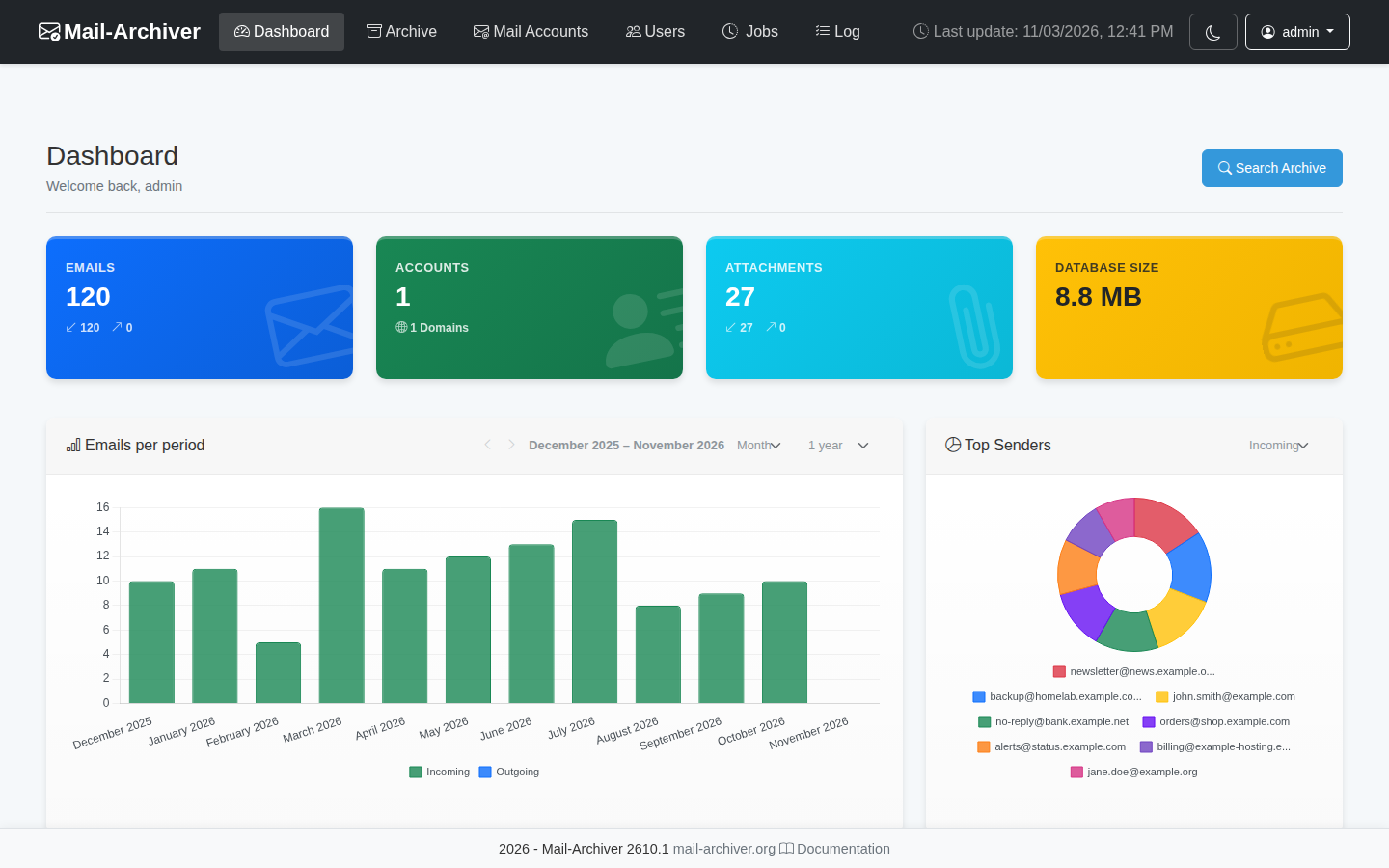
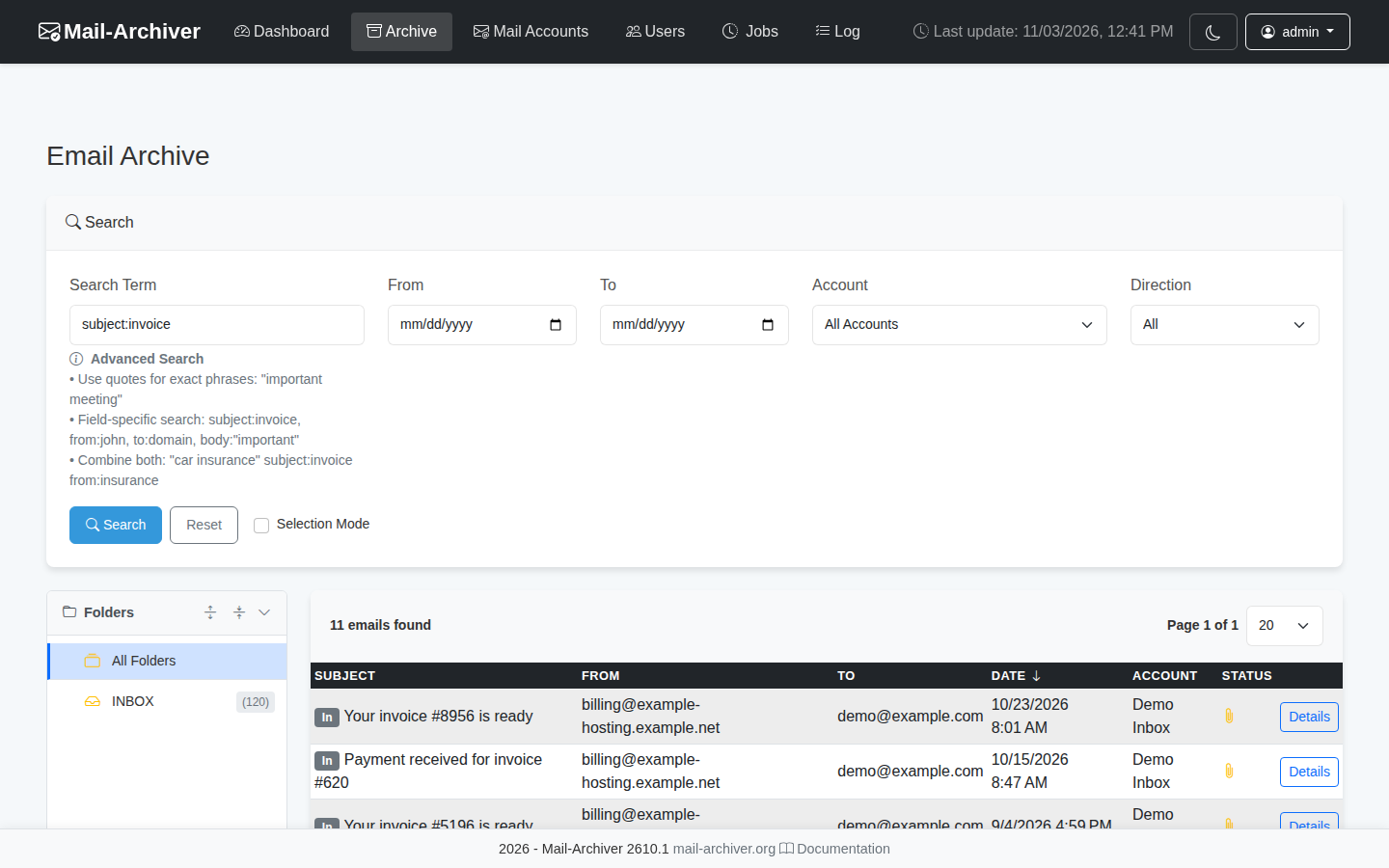
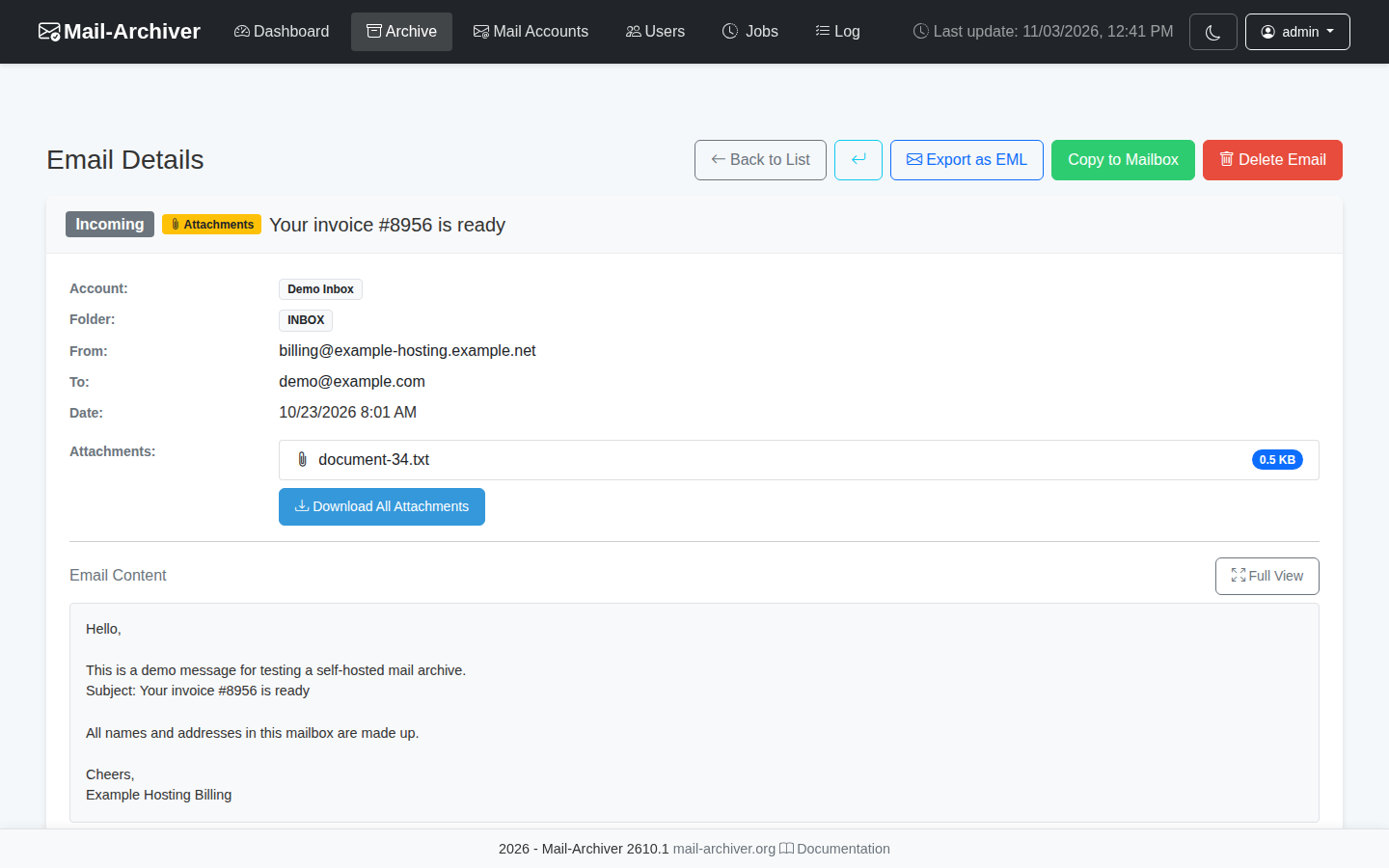
The search box understands field prefixes like subject:invoice or from:john, quoted phrases, plus filters for date range, account and direction. From a message you can export it as EML, download attachments or copy it back into a live mailbox. Whole accounts can be exported as mbox or zipped EML. There is multi-user support with per-account permissions, OIDC login, two-factor authentication, an access log, and a dashboard with counters, a per-period chart and top senders.
Two newer additions are aimed at automation: a read-only REST API with per-user API keys, and an optional MCP endpoint at /mcp that exposes the same read-only access to AI agents. Both are switched off by default.
Retention and deletion, and when it actually happens
Mail-Archiver can also clean up your mail server, but only if you ask it to. Each account has a Delete After Days field that is empty by default, and an empty field means nothing gets deleted from the server. If you fill it in, messages older than that are removed via IMAP EXPUNGE during sync, while the archived copy stays. A separate Local Retention Days value can trim the archive itself, but only when server retention is set too, and it must be at least as long, so the archive never loses a message before the mailbox does. For setups that need the opposite, DeletionPolicy__DeletionAllowed=false locks archived mail against manual deletion. Local retention still runs in that mode, which is worth knowing before you rely on it for compliance.
Installing Mail-Archiver 2610.1 with Docker Compose
You need a Linux host with Docker Engine and the Compose plugin, plus a reverse proxy for HTTPS. The app does not serve HTTPS on its own, and the project says plainly that it must sit behind a proxy. Our test VM had 2 vCPUs and 1.8 GB of RAM, which was more than enough.
The compose file below is based on the official setup guide, with the image pinned to 2610.1, secrets moved into a .env file (the approach the docs recommend for production), and only the settings we actually changed. Everything else falls back to the defaults shipped in the image.
Step 1: Create a folder and the .env file
mkdir -p ~/mail-archiver && cd ~/mail-archiver

cat > .env <<EOF
POSTGRES_PASSWORD=$(openssl rand -hex 24)
AUTH_USERNAME=admin
AUTH_PASSWORD=$(openssl rand -base64 18)
CREDENTIAL_ENCRYPTION_KEY=$(openssl rand -base64 32)
EOF

chmod 600 .env
A few notes on these values. The database password is generated as hex on purpose: it ends up inside a connection string where a semicolon would break things, and hex avoids that whole class of problem. AUTH_PASSWORD is only the starting password for the built-in admin, as you will see in a moment. CREDENTIAL_ENCRYPTION_KEY is a 256-bit key that makes Mail-Archiver encrypt stored IMAP passwords and OAuth tokens in the database, a feature added in 2610.1. Back this key up separately from your database. Without it, encrypted credentials cannot be recovered and have to be entered again.
Step 2: Create compose.yaml
services:
  mailarchive-app:
    image: s1t5/mailarchiver:2610.1
    restart: always
    environment:
      # Database connection (password comes from .env)
      - ConnectionStrings__DefaultConnection=Host=postgres;Database=MailArchiver;Username=mailuser;Password=${POSTGRES_PASSWORD};
      # Built-in admin account
      - Authentication__Username=${AUTH_USERNAME}
      - Authentication__Password=${AUTH_PASSWORD}
      - Authentication__CookieSameSite=Lax
      # Encrypt stored IMAP passwords and OAuth tokens at rest
      - Security__CredentialEncryptionKey=${CREDENTIAL_ENCRYPTION_KEY}
      # Time zone used to display mail timestamps
      - TimeZone__DisplayTimeZoneId=Europe/Berlin
      # Only answer requests for your real hostname
      - AllowedHosts=mail-archive.example.com
    ports:
      - "127.0.0.1:5000:5000"
    networks:
      - postgres
    volumes:
      - ./data-protection-keys:/app/DataProtection-Keys
    depends_on:
      postgres:
        condition: service_healthy

  postgres:
    image: postgres:17-alpine
    restart: always
    environment:
      POSTGRES_DB: MailArchiver
      POSTGRES_USER: mailuser
      POSTGRES_PASSWORD: ${POSTGRES_PASSWORD}
    volumes:
      - ./postgres-data:/var/lib/postgresql/data
    networks:
      - postgres
    healthcheck:
      test: ["CMD-SHELL", "pg_isready -U mailuser -d MailArchiver"]
      interval: 10s
      timeout: 5s
      retries: 5
      start_period: 10s

networks:
  postgres:
Replace mail-archive.example.com with your hostname and pick your own IANA time zone. The port is bound to 127.0.0.1 so that only a proxy on the same host can reach it. If your proxy runs on another machine, adjust the binding and firewall accordingly.
Authentication__CookieSameSite=Lax comes from the official compose example, and the docs recommend it when running behind a reverse proxy. The built-in default is Strict, which can lose your session when you open the archive from a link on another site.
Step 3: Start the stack
docker compose up -d
docker compose restart
docker compose ps
The restart is part of the official installation steps, so we followed it. In our test the app was already answering before the restart, and after it the login page came back in about five seconds. On the very first start the app ran 29 database migrations, which you can watch with docker compose logs -f mailarchive-app until you see "Application started".
Step 4: Put a reverse proxy in front
With Caddy, a minimal site block is enough:
mail-archive.example.com {
    reverse_proxy 127.0.0.1:5000
}
Caddy passes the original Host header through and adds the X-Forwarded-* headers on its own. That matters here. Because we set AllowedHosts, Mail-Archiver rejects any request whose Host header is not your hostname with HTTP 400. We checked this on the test VM with curl: a request with Host: 127.0.0.1 got a 400, a request with the real hostname got the login page, and a request with Host: localhost:5000 plus a correct X-Forwarded-Host was still rejected. So avoid proxy configs that rewrite the Host header to the upstream address. The Caddy example in the project's own reverse proxy guide does exactly that, so do not copy it as-is if you use AllowedHosts. We only simulated the proxy headers with curl and did not run a full Caddy setup on the VM.
If you use nginx and plan to upload mbox files through the browser, raise client_max_body_size, because nginx's default of 1 MB will block anything bigger. Mail-Archiver itself accepts uploads up to 10 GB by default.
Step 5: First login and the forced password change
Open your hostname, log in as admin with the password from .env (grep AUTH_PASSWORD .env shows it), and you will land on a password change page you cannot skip. According to the docs this happens as long as the configured password is still in use and no mail account exists yet. The new password needs at least 10 characters with upper and lower case letters, a number and a special character. Once it is changed, the prompt does not come back.
Right after that, an admin also sees a "what's new" dialog with the release notes. The app fetches those from GitHub Releases. If you would rather your archive not make that call, set ReleaseNotes__Enabled=false.
Step 6: Get mail into the archive
For a live mailbox, go to Mail Accounts → New Account, choose the provider, enter server, port and credentials, and save. The first sync is a full one and afterwards it only fetches new mail. If you have old exports lying around, create an account with the provider set to Import Only and use the Import menu on the Mail Accounts page to upload an .mbox file (everything goes into one folder you choose) or a ZIP of .eml files (the folder structure inside the ZIP is kept).
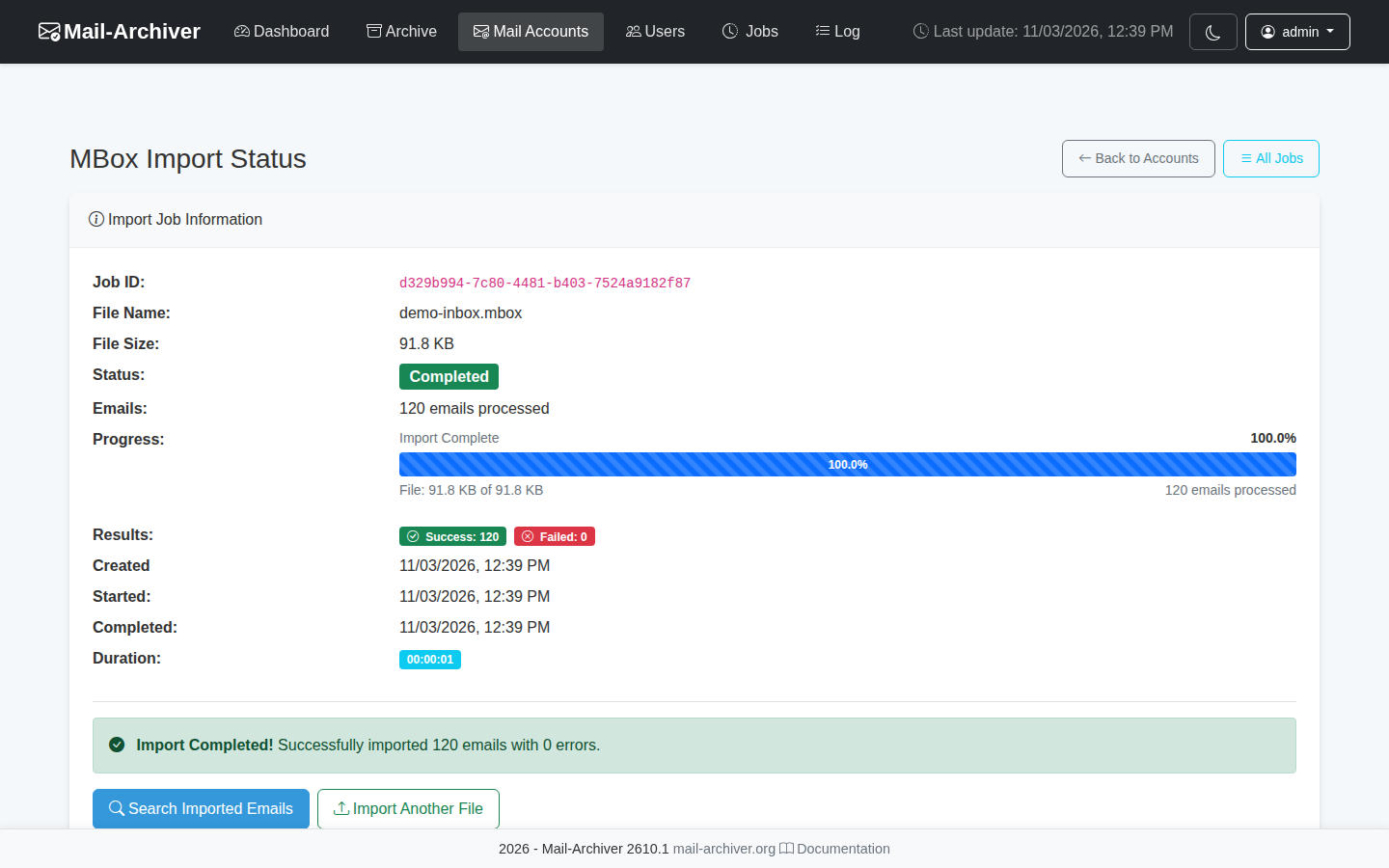
We went the import route with a made-up mailbox of 120 messages, 27 of them with attachments. The upload of the 92 KB mbox file finished in about a second, with 120 imported and 0 failed.
What we noticed in our test
Resource use is modest. Right after the first start, docker stats showed about 82 MiB for the app container and 26 MiB for PostgreSQL. After the import and some clicking around, the app sat at roughly 147 MiB and PostgreSQL at 29 MiB. The two images took up about 460 MB and 420 MB on disk. A real archive will of course grow with your mail, since bodies and attachments live in the database.
The one thing that confused us for a minute: after the import, the dashboard counters still said 0 emails, even though the archive view listed all 120 and the "Recent Emails" box showed them too. That is by design. Since 2610.1 the expensive dashboard numbers are computed by a background service every 15 minutes (Dashboard__RefreshIntervalMinutes) and cached. After a container restart they were recomputed within about half a minute, otherwise they simply catch up on the next run.
Field search worked as advertised. subject:invoice returned 11 of the 120 demo messages, which matched what we had generated.
Tips for running it day to day
- Back up three things: the
postgres-datafolder, thedata-protection-keysfolder and your compose file plus.env. The project's backup guide recommends stopping the containers for a consistent copy, or using a database dump if you cannot afford downtime. - Protect the data protection keys. The app logs that these keys are stored unencrypted on disk. They protect login cookies, so keep the folder readable for root only and include it in backups.
- Pin and upgrade on purpose. To update, change the image tag, run
docker compose pullanddocker compose up -d, and read the release notes first.postgres:17-alpinefollows PostgreSQL 17 minor updates, but a jump to a new major version needs a proper migration, which the project documents separately. - Use app passwords for IMAP where your provider offers them, so the archive never holds your main account password.
- Look at the long list of optional settings in the setup guide before going big. Sync interval, concurrent syncs, timeouts and a daily bandwidth limit for providers with download caps are all configurable.
Limits and security
Be clear about what you are building here: a single place that holds every email you have ever received, with search. That is useful for you and attractive for anyone else. Do not expose it to the internet without HTTPS, a strong admin password and preferably two-factor authentication or OIDC in front of it. Keep AllowedHosts set to your real hostname rather than *, which the docs warn against for production.
Some other honest limitations:
- There is no HTTPS inside the container unless you configure Kestrel with your own certificate. A reverse proxy is the expected setup.
- Everything lives in PostgreSQL. That keeps backups simple but means a large archive means a large database. Storing the original raw message for every email (an optional feature for DKIM checks and forensics) roughly doubles the storage per mail, according to the docs.
- Credential encryption only kicks in when you set the key. Without it, IMAP passwords are stored in plain text and the app logs a warning at startup.
- Server-side deletion through retention policies is permanent on the mail server. Test it on a throwaway account before enabling it on your main inbox.
- We did not test IMAP sync against a real mail server, Microsoft 365, OIDC, the REST API or the MCP endpoint. Our hands-on impressions cover installation, first login, mbox import, search and the message view.
Alternatives
Open Archiver covers similar ground (IMAP, Google Workspace, Microsoft 365, PST files) and is licensed under the AGPL-3.0. Its compose stack is heavier, with PostgreSQL, Valkey, Meilisearch and Apache Tika running next to the app, which buys you full-text search inside attachments at the cost of more memory. Piler is the veteran in this space and is aimed at organizations that need compliance archiving at scale, with an open source and a commercial edition.
If you only want a raw copy of your mailbox and do not need a web interface, a scheduled IMAP sync tool writing Maildir to disk is simpler still. You just lose the search UI, the dashboard and the multi-user access.
Verdict
Mail-Archiver does one job and does it without much fuss. Two containers, a short compose file, and a few minutes later you have a searchable archive with import, export and restore built in. It is light enough for a small VM or a NAS, the documentation is detailed, and the features that can destroy data, like server-side deletion, are opt-in. The rough edges we hit were small: a dashboard that lags behind by design and a Host header check that will bite you if your proxy rewrites it. If you have years of mail sitting with a provider and no copy of your own, this is a good weekend project.
Sources
- Mail-Archiver on GitHub (source code, README, GPL-3.0 license)
- Mail-Archiver release 2610.1
- s1t5/mailarchiver on Docker Hub
- Mail-Archiver documentation: Setup and Parameters
- Mail-Archiver documentation: Importing EML and MBox files
- Mail-Archiver documentation: Mail Synchronization
- Mail-Archiver documentation: Retention Policies
- Mail-Archiver documentation: User Management
- Mail-Archiver documentation: Reverse Proxy
- Mail-Archiver documentation: Backup and Restore
- Caddy documentation: reverse_proxy directive
- nginx documentation: client_max_body_size
- Open Archiver on GitHub
- Piler