AdGuard Home v0.107.80: Network-Wide Ad Blocking with Docker Compose (and Why You Should Update)
AdGuard Home blocks ads and trackers for every device on your network, speaks DNS-over-HTTPS, TLS and QUIC out of the box and runs as a single container. Version 0.107.80 landed on 3 November with security fixes. Here is what it is, how it compares to Pi-hole and how to run it with Docker Compose.
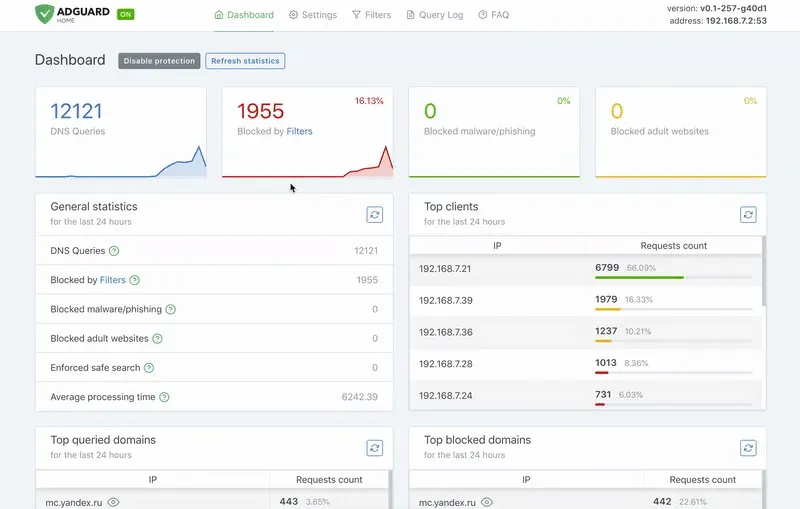
A while ago we looked at how to update Pi-hole to v6.5, and the most common follow-up question was a simple one: what about AdGuard Home? It is the other big name in self-hosted DNS filtering, and it just got a fresh release. AdGuard Home v0.107.80 came out on 3 November 2026 with an updated Go toolchain and a security mitigation, so this is a good moment to take a proper look at it.
In this guide I'll explain what AdGuard Home does, where it differs from Pi-hole, how to run it with Docker Compose, and what to watch out for along the way.
What is AdGuard Home?
AdGuard Home is a network-wide blocker for ads and trackers. You point your devices (or your router's DHCP settings) at it as their DNS server, and it answers requests for known ad, tracking and malware domains with nothing, so those connections never happen. Because it works at the DNS level, it also covers devices where you can't install an ad blocker, such as smart TVs, game consoles and IoT gadgets.
It is written in Go, licensed under GPL-3.0, and has about 38,000 stars on GitHub. According to its README it is based on the same software that powers AdGuard's public AdGuard DNS service, and the two share a lot of code. The difference is that with AdGuard Home the server is yours: you decide what gets blocked, and the query logs stay on your hardware.
Key features
Here is what you get without installing anything extra:
- Blocklists and custom rules. Add filter lists by URL and write your own rules in the web interface.
- Encrypted DNS in both directions. AdGuard Home can use DNS-over-HTTPS, DNS-over-TLS and DNSCrypt upstream servers, and it can itself act as a DNS-over-HTTPS, DNS-over-TLS, DNS-over-QUIC or DNSCrypt server for your devices.
- Per-client settings. Different rules for the kids' tablet and your work laptop.
- Access settings. Decide which clients are allowed to use the server at all.
- Parental control and Safe Search. Block adult domains and force safe search on search engines.
- Phishing and malware blocking through AdGuard's browsing security service.
- Built-in DHCP server, if you want AdGuard Home to hand out IP addresses as well.
- HTTPS for the admin interface and the ability to run without root privileges.
- A REST API (documented as OpenAPI in the repo) and an official Home Assistant integration.
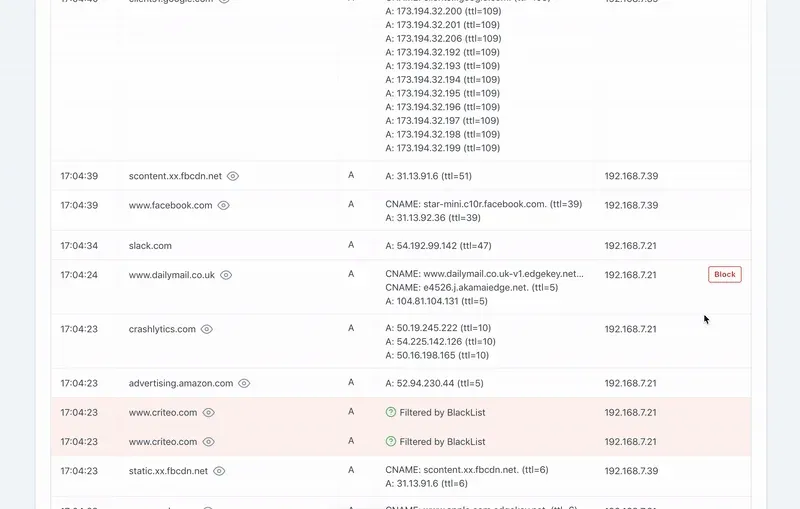
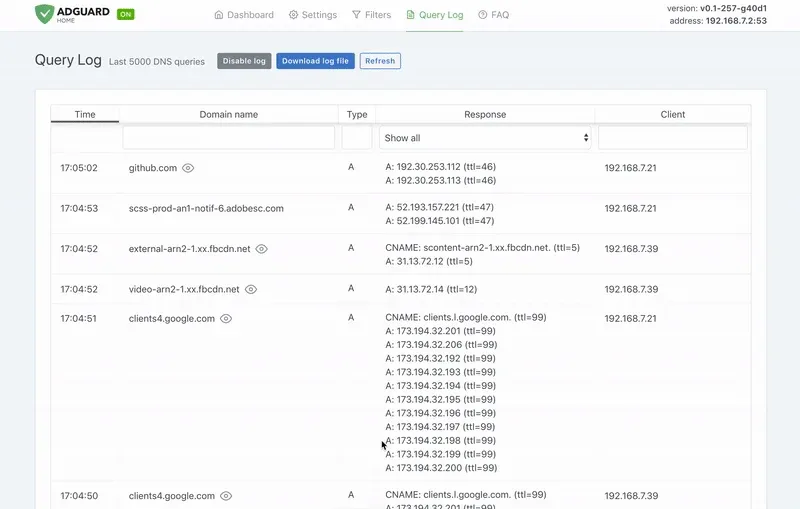
A quick note on the screenshots: they are frames from the official animation in the project README. The current interface may look slightly different, and the project is working on a new UI (more on that below).
What's new in v0.107.80
This is a maintenance and security release. According to the release notes:
- The Go version was updated to pick up the security fixes from Go 1.27.3.
- Multipath TCP support was disabled to mitigate a vulnerability the team references as CVE-2026-98432.
- macOS 13 Ventura is no longer supported, following the Go 1.27 requirements.
The previous release, v0.107.79 (18 August 2026), is worth knowing about too if you skipped it. It made AdGuard Home more resistant to resource exhaustion attacks over DNS-over-QUIC (GHSA-w6v6-f44j-3rj2), added comments in the bootstrap servers configuration, fixed DNS64 handling of unresolved CNAME/DNAME answers, and deprecated strict_sni_check.
If you expose DNS-over-QUIC or DNS-over-HTTPS to the internet, keeping up with these releases matters. If AdGuard Home only listens inside your LAN, the risk is lower, but updating a single container takes a minute, so there is little reason to wait.
A look ahead: v1.0 and a new UI
The project's beta channel now ships v1.0.0-b.1 (30 September 2026), and the release notes say the beta and edge channels have switched to "the new UI and versioning scheme". That's a beta, so I'd leave it alone on the DNS server your family depends on. If you're curious, the Docker image offers beta and edge tags.
AdGuard Home vs. Pi-hole
Both block ads with the same basic technique (DNS sinkholing), and both handle blocklists, per-client configuration and DHCP. The main differences:
| AdGuard Home | Pi-hole | |
|---|---|---|
| Language / packaging | Single Go binary, one container | Several components (FTL, web, core) |
| Encrypted upstream DNS (DoH/DoT/DNSCrypt) | Built in | Needs extra software (for example cloudflared or unbound with DoT) |
| Acting as a DoH/DoT/DoQ server | Built in | Needs extra software |
| Parental control, Safe Search | Built in | Needs extra blocklists / not built in |
| Platforms | Linux, macOS, Windows, BSD and more | Linux (or Docker) |
| License | GPL-3.0 | EUPL |
The comparison table in AdGuard Home's own README is understandably favourable to AdGuard Home, so treat it with a grain of salt. Pi-hole has a huge community, years of documentation, and v6 brought a modern web interface and a built-in web server. My rule of thumb: if you want encrypted DNS and per-device controls with as few moving parts as possible, AdGuard Home is the easier route. If you already run Pi-hole happily, there's no urgent reason to switch.
Installing AdGuard Home with Docker Compose
The official image is adguard/adguardhome on Docker Hub. It stores its data in /opt/adguardhome/work and its configuration in /opt/adguardhome/conf. The first-run setup wizard listens on port 3000.
Step 1: Free up port 53
On many Linux distributions, systemd-resolved already listens on port 53 with its stub resolver. Check it first:
sudo ss -tulpn | grep ':53 '
If you see systemd-resolved, the official docs recommend disabling the stub listener. Create /etc/systemd/resolved.conf.d/adguardhome.conf:
[Resolve]
DNS=127.0.0.1
DNSStubListener=no
Then switch resolv.conf and restart the service:
sudo mv /etc/resolv.conf /etc/resolv.conf.backup
sudo ln -s /run/systemd/resolve/resolv.conf /etc/resolv.conf
sudo systemctl reload-or-restart systemd-resolved
Keep in mind that the host itself now resolves names through AdGuard Home on 127.0.0.1, so make sure the container starts reliably (more on that in the tips).
Step 2: Create the Compose file
mkdir -p ~/adguardhome && cd ~/adguardhome
Create a compose.yml:
services:
  adguardhome:
    image: adguard/adguardhome:v0.107.80
    container_name: adguardhome
    restart: unless-stopped
    volumes:
      - ./work:/opt/adguardhome/work
      - ./conf:/opt/adguardhome/conf
    ports:
      - "53:53/tcp"
      - "53:53/udp"
      - "3000:3000/tcp"   # first-run setup wizard
      - "8080:80/tcp"     # admin interface after setup
      # - "853:853/tcp"   # DNS-over-TLS
      # - "853:853/udp"   # DNS-over-QUIC
      # - "443:443/tcp"   # DNS-over-HTTPS / HTTPS admin
A few things to note:
- I pin the version tag instead of
latest, so updates only happen when you decide. - The admin interface listens on port 80 inside the container by default. I map it to 8080 on the host so it doesn't collide with a reverse proxy that already owns ports 80 and 443.
- Only open the encrypted DNS ports if you actually configure encryption (you'll need a TLS certificate for that).
- The DHCP ports (67/68) are left out on purpose. If you want AdGuard Home's DHCP server, the docs say to use
network_mode: hostinstead of port mappings, which only works on Linux hosts.
Step 3: Start it and run the wizard
docker compose up -d
docker compose logs -f adguardhome
Open http://your-server:3000 in a browser. The wizard asks for the listen interfaces and ports for the admin interface and DNS server, then for an admin username and password. Keep the admin port at 80 (that's the container port we mapped to 8080). After the wizard finishes, the interface is available at http://your-server:8080, and you can remove the 3000 mapping from the Compose file.
Step 4: Point your network at it
The easiest way is to set your server's IP as the DNS server in your router's DHCP settings, so every device picks it up automatically. To test a single machine first, query the server directly:
dig @your-server-ip example.com
dig @your-server-ip doubleclick.net
The second query should come back blocked (by default AdGuard Home answers blocked domains with an unspecified address like 0.0.0.0).
Tips and gotchas
Client IPs in bridge mode. With normal port mappings, AdGuard Home may see Docker's gateway address (something like 172.17.0.1) instead of your real devices, which makes per-client rules and statistics useless. The official docs recommend network_mode: host if you want real client IPs. With host networking, remove the ports: section and make sure ports 53, 80 and 3000 are free on the host.
Editing the YAML file. All settings live in conf/AdGuardHome.yaml. Only edit it while the container is stopped, because the running program overwrites the file.
docker compose stop
nano conf/AdGuardHome.yaml
docker compose start
Health checks. The image no longer ships a Docker HEALTHCHECK (it caused problems and was removed in v0.107.34). The docs suggest building your own check that queries the special name healthcheck.adguardhome.test and expects a NODATA answer. Alternatively, add a DNS monitor in Uptime Kuma and let it alert you when name resolution stops.
Have a fallback. When your only DNS server is down, the whole household "loses the internet". Either run a second instance on another machine, or keep a public resolver as secondary DNS in your router, knowing that some queries will then bypass the filter.
Updating. With a pinned tag, change the version in compose.yml and run:
docker compose pull && docker compose up -d
Back up the conf folder before major updates, especially once v1.0 reaches the stable channel.
Limitations
AdGuard Home is honest about this in its README: a DNS blocker can't block ads that are served from the same domain as the content. YouTube and Twitch ads, or sponsored posts on social networks, will still show up. For those you still need a browser extension. Some apps also break when a tracking domain they depend on is blocked, so expect to allowlist a domain now and then. And if devices use their own hard-coded DNS or DNS-over-HTTPS (some browsers and smart TVs do), they may bypass your server entirely unless you handle that on the router or firewall.
Conclusion
AdGuard Home is one of the easiest ways to make every device on your network a little quieter and more private. It runs as a single container, encrypted DNS and per-client rules are built in, and the setup wizard takes a few minutes. If you already run it, update to v0.107.80 now. If you're new to DNS filtering, it's a great first homelab service, and you can keep an eye on it with Beszel or Uptime Kuma.
Are you on Team AdGuard Home or Team Pi-hole? Tell us why in the comments.
Sources
- AdGuard Home on GitHub (README, license, comparison and limitations)
- Release v0.107.80 and release v0.107.79
- Release v1.0.0-b.1
- AdGuard Home Docker guide (Knowledge Base)
- adguard/adguardhome on Docker Hub