Vaultwarden 1.37: Self-Host Your Password Manager with Docker Compose (and Update Now)
Vaultwarden is the lightweight, Bitwarden-compatible password server most homelabs run. Version 1.37.5 fixes two more security issues. Here is a secure Docker Compose setup, the admin panel, SSO and backups.
A password manager is one of the best things you can self-host, and one of the most sensitive. Vaultwarden has become the default choice in homelabs: it speaks the Bitwarden client API, so you keep using the polished official Bitwarden apps and browser extensions, but the server is a single lightweight container instead of Bitwarden's full multi-service stack.
On 1 November 2026 the project released Vaultwarden 1.37.5 with two more security fixes. In this guide we look at what changed recently, then build a secure Docker Compose setup with HTTPS, a hashed admin token, optional SSO and backups that actually restore.
What is Vaultwarden?
Vaultwarden (formerly bitwarden_rs) is an alternative server implementation of the Bitwarden Client API, written in Rust and licensed under AGPL-3.0. With roughly 70,000 GitHub stars it is one of the most popular self-hosted projects. It implements nearly the whole client API:
- Personal vault, Send, attachments and website icons
- Organizations with collections, sharing, member roles, groups, event logs, policies and admin password reset
- Two-factor authentication via authenticator apps, email, FIDO2 WebAuthn, YubiKey and Duo
- Emergency access
- An admin backend for server settings, users and organizations
- A bundled, slightly modified web vault
Important: Vaultwarden is not affiliated with Bitwarden, Inc. If something breaks, report it to the Vaultwarden project, not to Bitwarden support.
Why you should update to 1.37.5
The 1.37 line has been busy on the security side, so it pays to stay current:
- 1.37.0 (July 2026) fixed a batch of advisories, including SSRF via the icon endpoint, cross-organization cipher access and unauthenticated WebSocket flooding. It is also required for Bitwarden clients 2026.7.0+.
- 1.37.2 (August) is required for clients 2026.8.0+.
- 1.37.4 (October) fixed seven advisories, one rated High (8.1) around organization member revocation, plus issues with 2FA, invitations and attachments. If you have organization admins you don't fully trust, the release notes recommend rotating the organization API key after updating.
- 1.37.5 (1 November) fixes two medium-rated issues (website icons and emergency access), bundles web vault v2026.10.1 and is needed for newer web vaults to toggle two-step login methods.
One upgrade note for 1.37.5: invalid configuration values now stop startup with an error. Numeric options are stricter, for example LOGIN_RATELIMIT_MAX_BURST above 65535 or rate-limit *_SECONDS values of 0 are rejected. Check the logs after updating.
Installing Vaultwarden with Docker Compose
Prerequisite: HTTPS
The web vault uses the browser's Web Crypto API, which only works in a secure context. In practice that means Vaultwarden needs HTTPS, and the project recommends a reverse proxy in front of it. Pick the domain first, for example vault.example.com.
1. Create the folder and the env file
mkdir -p /opt/vaultwarden && cd /opt/vaultwarden
nano .env
DOMAIN=https://vault.example.com
# Create your own account first, then set this to false
SIGNUPS_ALLOWED=true
SHOW_PASSWORD_HINT=false
# ADMIN_TOKEN is set in step 3 (hashed!)
# SMTP is needed for invitations, email 2FA and emergency access
# SMTP_HOST=smtp.example.com
# SMTP_FROM=vault@example.com
# SMTP_PORT=587
# SMTP_SECURITY=starttls
# SMTP_USERNAME=...
# SMTP_PASSWORD=...
DOMAIN matters: Vaultwarden uses it for links in emails, for WebAuthn and to generate the SSO callback URL.
2. The Compose file with Traefik labels
services:
  vaultwarden:
    image: vaultwarden/server:1.37.5
    container_name: vaultwarden
    restart: unless-stopped
    env_file: .env
    volumes:
      - ./vw-data:/data
    networks:
      - traefik
    labels:
      - traefik.enable=true
      - traefik.docker.network=traefik
      - traefik.http.routers.vaultwarden.rule=Host(`vault.example.com`)
      - traefik.http.routers.vaultwarden.entrypoints=websecure
      - traefik.http.routers.vaultwarden.tls.certresolver=letsencrypt
      - traefik.http.services.vaultwarden.loadbalancer.server.port=80

networks:
  traefik:
    external: true
The container listens on port 80 internally; Traefik terminates TLS. Without Traefik, use ports: ["127.0.0.1:8000:80"] as in the README and point Caddy or Nginx at it. Images are available from Docker Hub (vaultwarden/server), ghcr.io/dani-garcia/vaultwarden and Quay.
docker compose up -d
Open https://vault.example.com, create your account with a strong master password, enable 2FA (a passkey/FIDO2 key or an authenticator app), then set SIGNUPS_ALLOWED=false and run docker compose up -d again. New users can still be invited from the admin panel or from an organization.
3. Enable the admin panel with a hashed token
The /admin page lets you change settings, invite and delete users and see diagnostics. It is enabled by setting ADMIN_TOKEN. Don't store that token in plain text: Vaultwarden has a built-in command that creates an Argon2id hash:
docker exec -it vaultwarden /vaultwarden hash --preset owasp
Enter your chosen admin password twice and copy the resulting $argon2id$... string into .env:
ADMIN_TOKEN='$argon2id$v=19$m=19456,t=2,p=1$...'
Keep the single quotes in the .env file so the $ signs are not interpreted. After docker compose up -d, log in at /admin with the password, not with the hash.
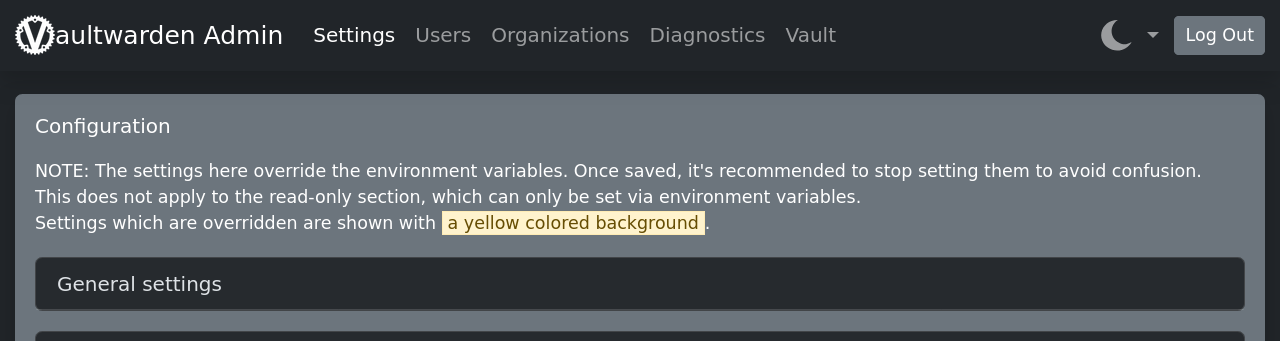
Two things to know: settings saved in the admin panel are written to config.json and override environment variables. And admin sessions are JWTs that last 20 minutes by default (ADMIN_SESSION_LIFETIME). If you don't need the panel, leave ADMIN_TOKEN unset and it is disabled.
Optional: single sign-on with OpenID Connect
Since 1.35.0 Vaultwarden supports SSO via OpenID Connect. Your identity provider needs a discovery endpoint and client ID/secret authentication. If you followed our Pocket ID guide, the setup looks like this:
SSO_ENABLED=true
SSO_AUTHORITY=https://id.example.com
SSO_CLIENT_ID=<client id>
SSO_CLIENT_SECRET=<client secret>
# SSO_ONLY=true   # disables email + master password login
The callback URL is generated from DOMAIN: https://vault.example.com/identity/connect/oidc-signin. Add it to the client in your identity provider. Note that SSO only replaces the login. Your master password is still required to decrypt the vault, which is exactly what you want from a zero-knowledge password manager.
Mobile push notifications
By default, the Bitwarden mobile apps sync on their own schedule. To get instant sync via push, Vaultwarden can use Bitwarden's push relay: request an installation ID and key at bitwarden.com/host, then set PUSH_ENABLED=true, PUSH_INSTALLATION_ID and PUSH_INSTALLATION_KEY. This is optional; the browser extensions and desktop apps sync live via WebSockets anyway.
Backups that actually restore
Your vault is only as safe as your backups. The vw-data folder contains:
db.sqlite3– the main database (the most important file)attachments/andsends/– file attachments and Send filesconfig.json– settings saved via the admin panelrsa_key*– keys used to sign login tokensicon_cache/– can be skipped
The wiki recommends backing up the database with SQLite's online backup API instead of copying the file while it is in use:
sqlite3 /opt/vaultwarden/vw-data/db.sqlite3 \
  ".backup '/backups/vaultwarden/db-$(date +%Y%m%d-%H%M).sqlite3'"
Run that from cron, copy the other folders alongside, encrypt the result and keep at least one copy off-site (restic, rclone, …). When restoring a .backup file, delete any old db.sqlite3-wal first. And test a restore once in a while. To be sure the nightly job really ran, let it ping Healthchecks at the end.
Hardening tips
- Keep signups disabled after creating your accounts, and use invitations.
- Turn on 2FA for every user; FIDO2 keys and passkeys are the strongest option.
- Don't expose
/adminpublicly if you can avoid it: restrict it at the proxy (IP allowlist or VPN) or leave the admin panel disabled. - Add fail2ban or CrowdSec on the Vaultwarden logs to block brute-force attempts.
- Update quickly. Watch the release page or let changedetection.io or an RSS reader like CommaFeed follow
https://github.com/dani-garcia/vaultwarden/releases.atom. - Monitor availability with Uptime Kuma, so you notice before you are locked out on the road.
- Need to share a single secret with someone who doesn't use your vault? Send works, or use a one-time link tool like Yopass.
Vaultwarden vs the official Bitwarden server
| Vaultwarden | Bitwarden (self-hosted) | |
|---|---|---|
| Language / stack | Rust, single container | .NET, multiple containers (or the "Lite" unified image) |
| Database | SQLite, MySQL/MariaDB, PostgreSQL | MSSQL (Lite: also SQLite, MySQL, PostgreSQL) |
| Clients | Official Bitwarden apps | Official Bitwarden apps |
| Paid features (orgs, TOTP, …) | Included | Require a license |
| Support | Community | Bitwarden, Inc. |
| Security audits | Community project | Regular third-party audits |
For a household or a small team, Vaultwarden is the pragmatic choice. If you need vendor support, compliance paperwork or audited software, the official server is the safer business choice.
Conclusion
Vaultwarden gives you a full Bitwarden experience on almost any hardware, from a Raspberry Pi to a small VPS. The trade-off is that you are now the security team: HTTPS, closed signups, a hashed admin token, 2FA, tested backups and fast updates. With 1.37.5 out, now is a good moment to check all of those boxes.